
Onboarding with 360dialog
Register your number with Meta, verify it, and authorize Bookline — the full walkthrough.
This is the final step: creating your WhatsApp Business API account and connecting it to Bookline. You will create a 360dialog account, complete Meta’s embedded signup, verify the number, and authorize Bookline to send messages on your behalf.
Have at hand: your Facebook credentials (a user with full control of the business), your company’s legal information, and access to the phone number — you must be able to attend a call or read an SMS on it right now.
1. Start the connection
Section titled “1. Start the connection”Open the WhatsApp channel (status Ready for onboarding) and click Connect with 360 Dialog.
You’ll be asked for a phone number where you can receive the verification:
- If your number was purchased through Bookline, it can’t receive calls directly yet — enter a personal number where you can take a phone call right now. We set up a temporary forwarding from the new number to yours so you can receive the verification call.
- If it’s your own number, make sure you can attend a call on it or read the SMS code.
2. Create your 360dialog account
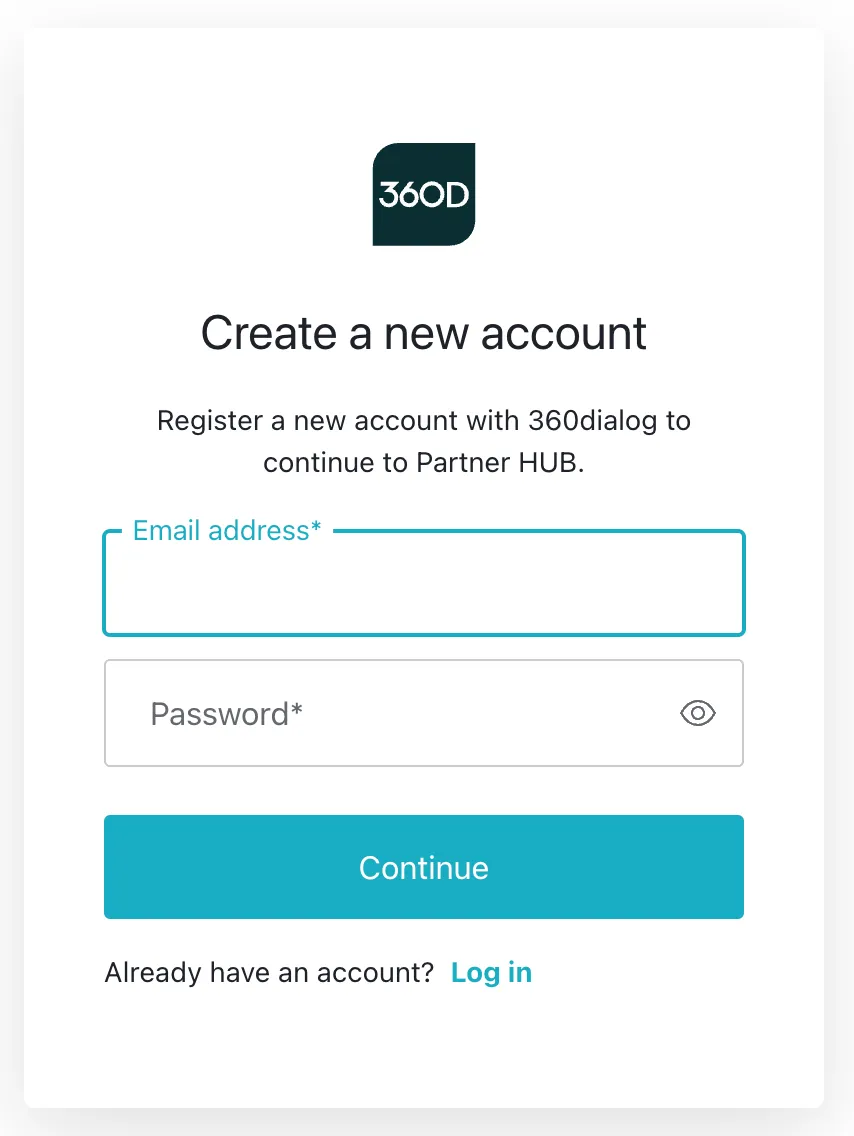
Section titled “2. Create your 360dialog account”A new 360dialog window opens. Register — ideally with the same email you use for your Bookline portal account.
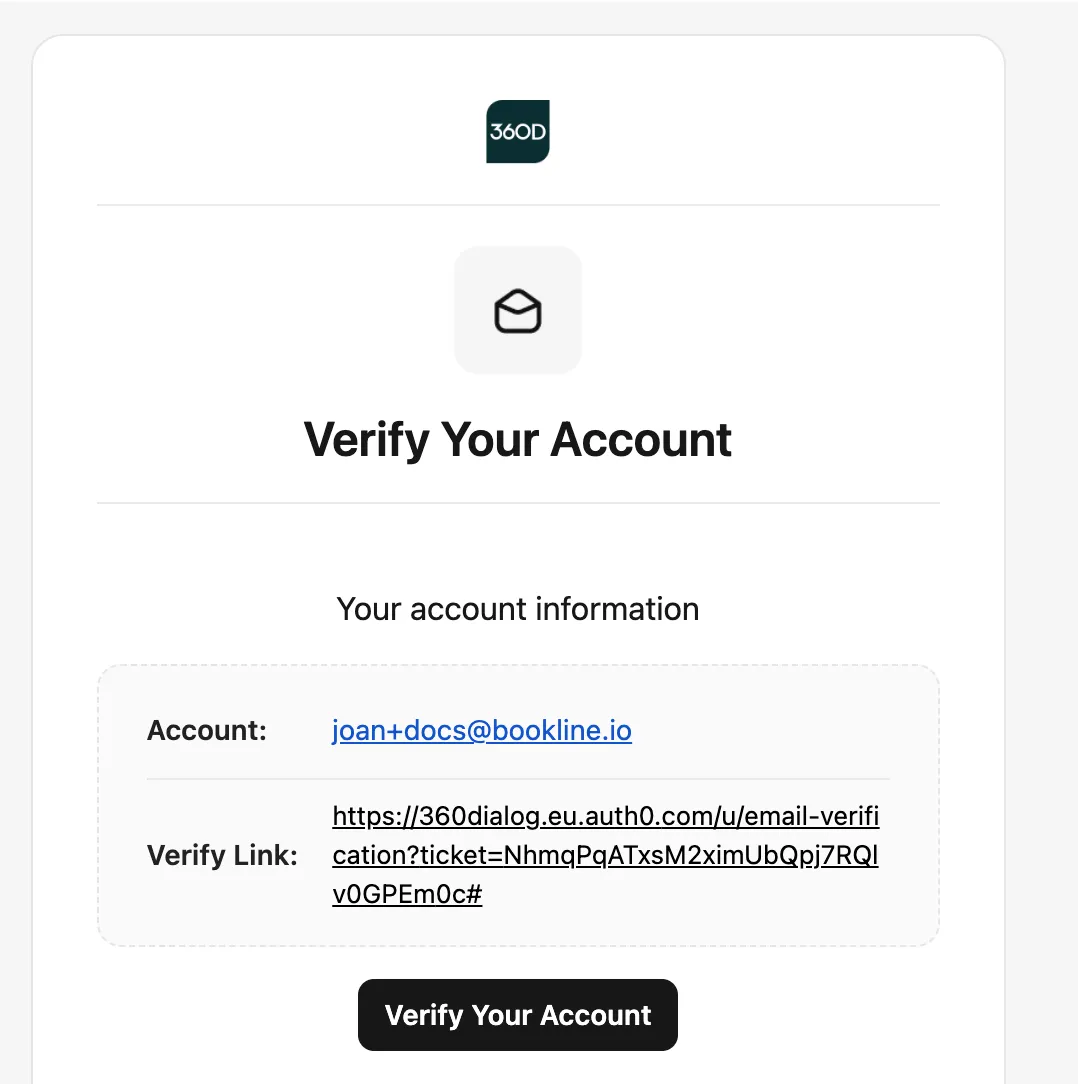
Check your inbox and verify the email by clicking the button, or by pasting the link in your browser.
With the email verified, continue with the form.
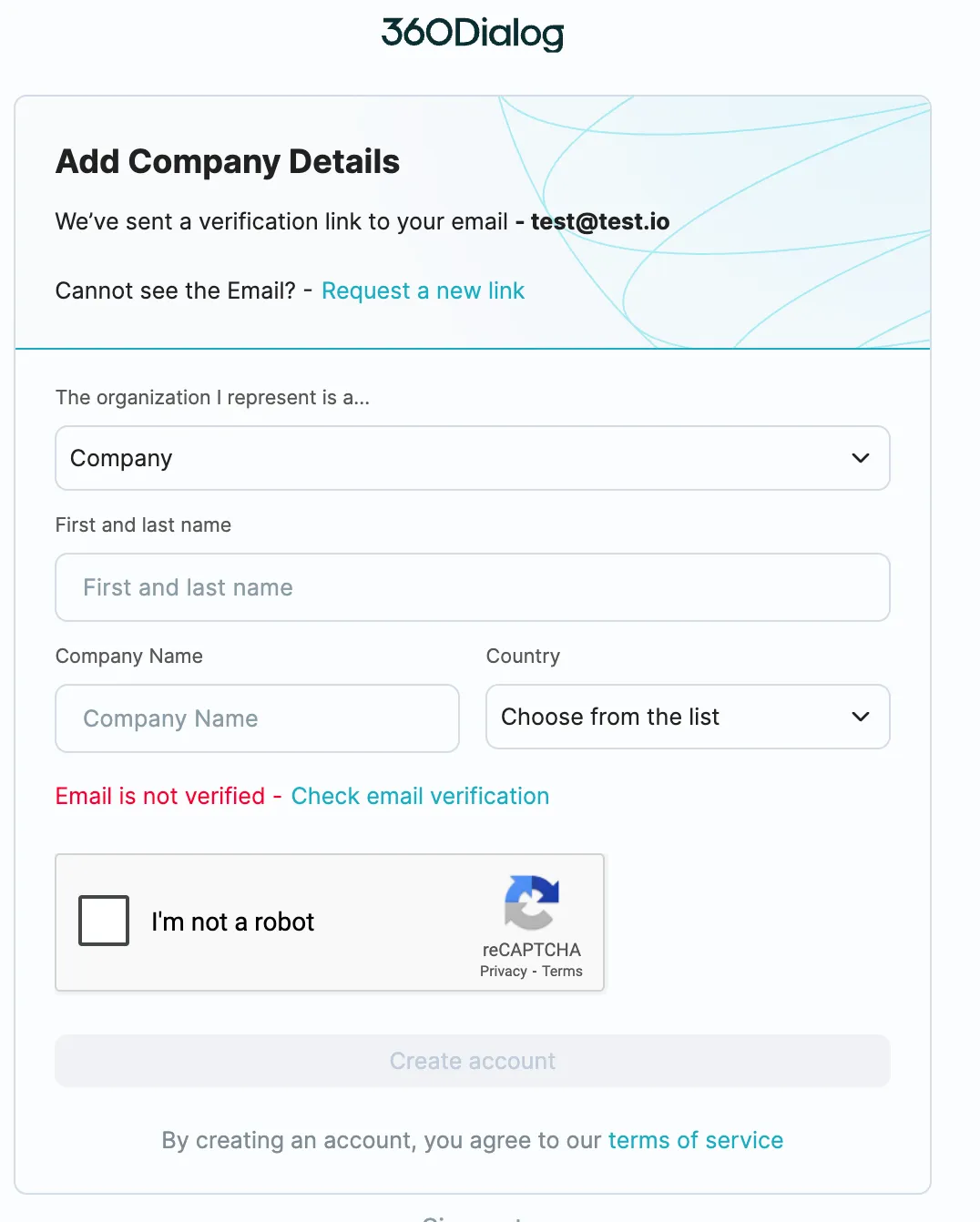
Before continuing, 360dialog asks you to confirm that the number is not in use by any other WhatsApp account — neither in the app (personal or Business) nor via another API provider.
3. Meta embedded signup
Section titled “3. Meta embedded signup”A Facebook window opens. Log in with the account that has full control of your business.
- Complete your business information — legal name, address, website.
- Choose the WhatsApp Business account — select Create a WhatsApp Business account and Create a new WhatsApp Business profile.
- Fill in the profile — the name and details your customers will see in the chat.
- Enter the phone number and choose how to receive the verification code.
- Verify the number — type the code you received by call or SMS. You can request a new code if it didn’t arrive.
- Wait while Meta verifies the data, then click Finish.
When you finish, 360dialog shows a confirmation that your account activation is in progress. If you see a message about the server being overloaded, don’t worry — the account will activate within a few minutes.
4. Authorize Bookline
Section titled “4. Authorize Bookline”Once the 360dialog account is active, you can grant Bookline permission to send messages with your WhatsApp account. Select the number(s) you want to authorize and click Authorize.
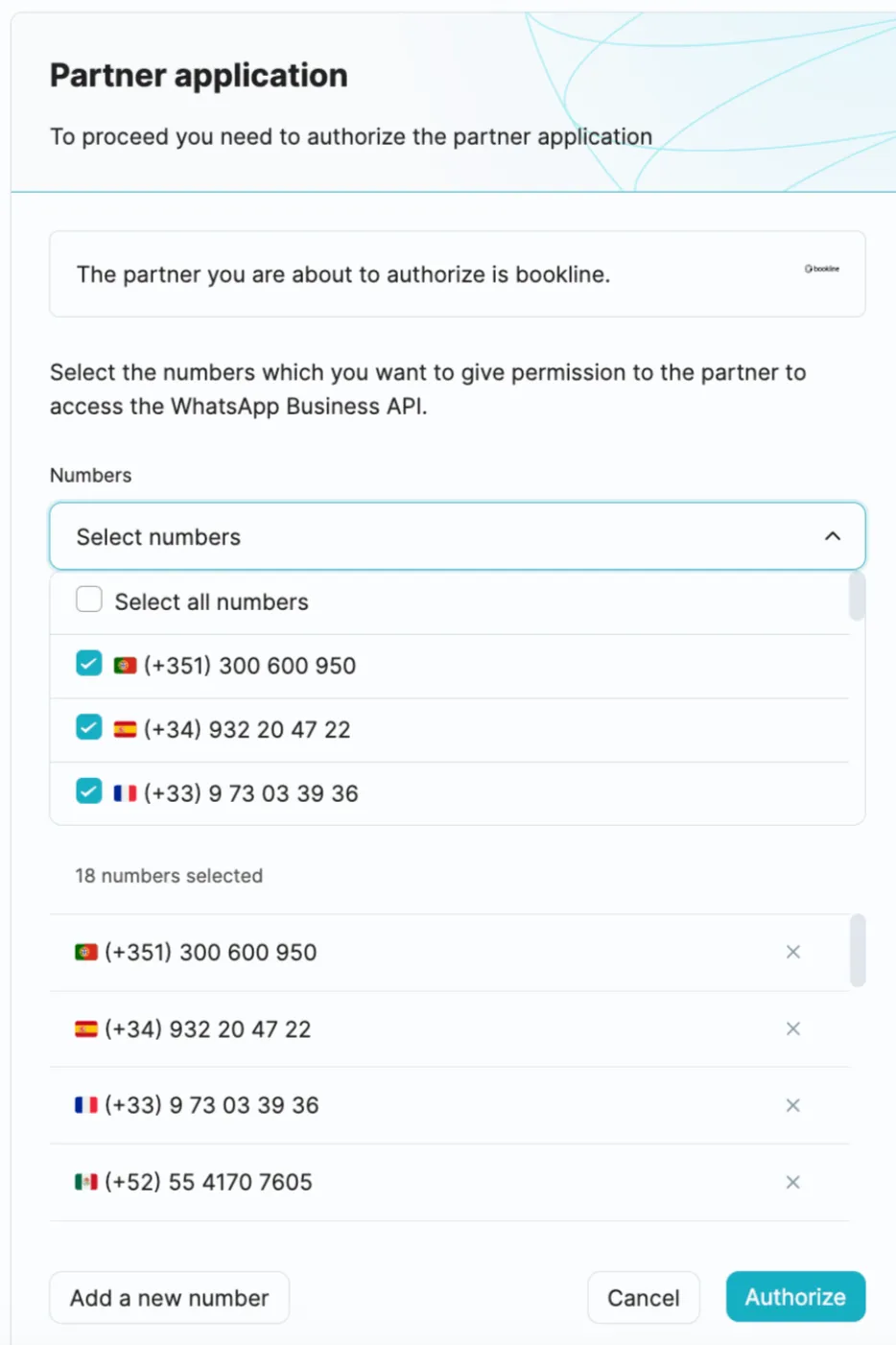
You are redirected back to your Bookline portal, to the channel’s page — from here you manage the whole WhatsApp configuration.
To reach this page later, go to Channels and open your WhatsApp channel.
Troubleshooting
Section titled “Troubleshooting”- An error appears instead of the channel page — click retry; if it persists, contact support and we’ll finish the connection with you.
- The channel shows In review — Meta is reviewing the account. No action needed; you’ll be notified when it’s approved.
- Doubts at any step — book a meeting with our support team directly from the flow, or write to us in the chat.