Delivery management
Transfer delivery calls to the right place instead of handling them as bookings.
Delivery Call Transfers
Section titled “Delivery Call Transfers”-
To activate Delivery transfers, first, you will need to locate your bot in the Products page in the client portal and click edit.

-
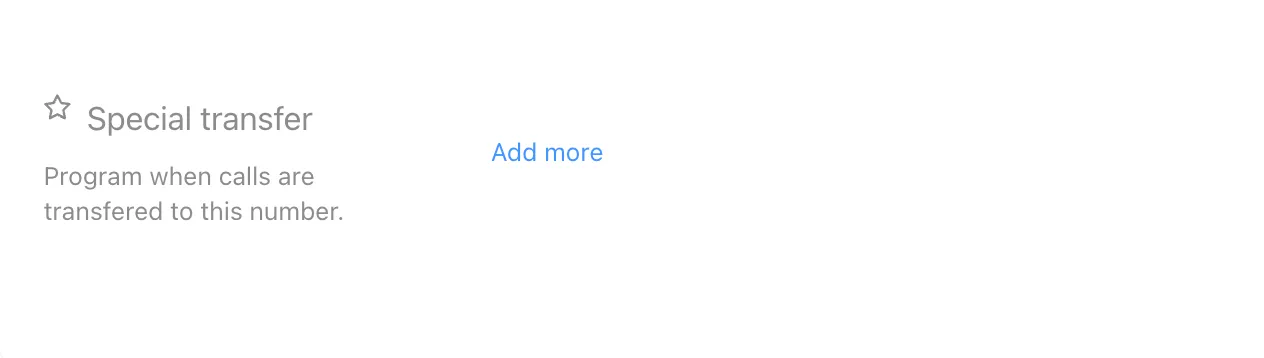
Scroll down down to the bottom of the page to the section labeled Special transfer and click ‘Add more’.
-
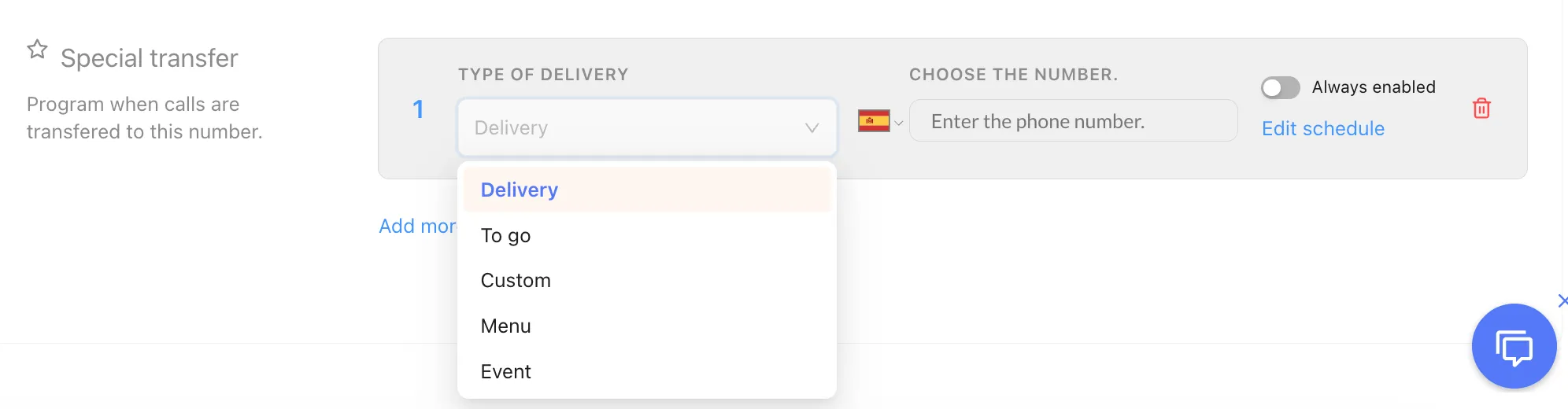
From the dropdown menu, select Delivery and enter the phone number where you’d like the bot to transfer the call.
WhatsApp Delivery Conversation
Section titled “WhatsApp Delivery Conversation”-
Before customers can place delivery orders via WhatsApp, you’ll need to create a WhatsApp bot for your venue.
-
Additionally, your WhatsApp bot needs to be added to your venue in the client portal. If you have not done so, please refer to ‘Assigning a bot to your venue’.
-
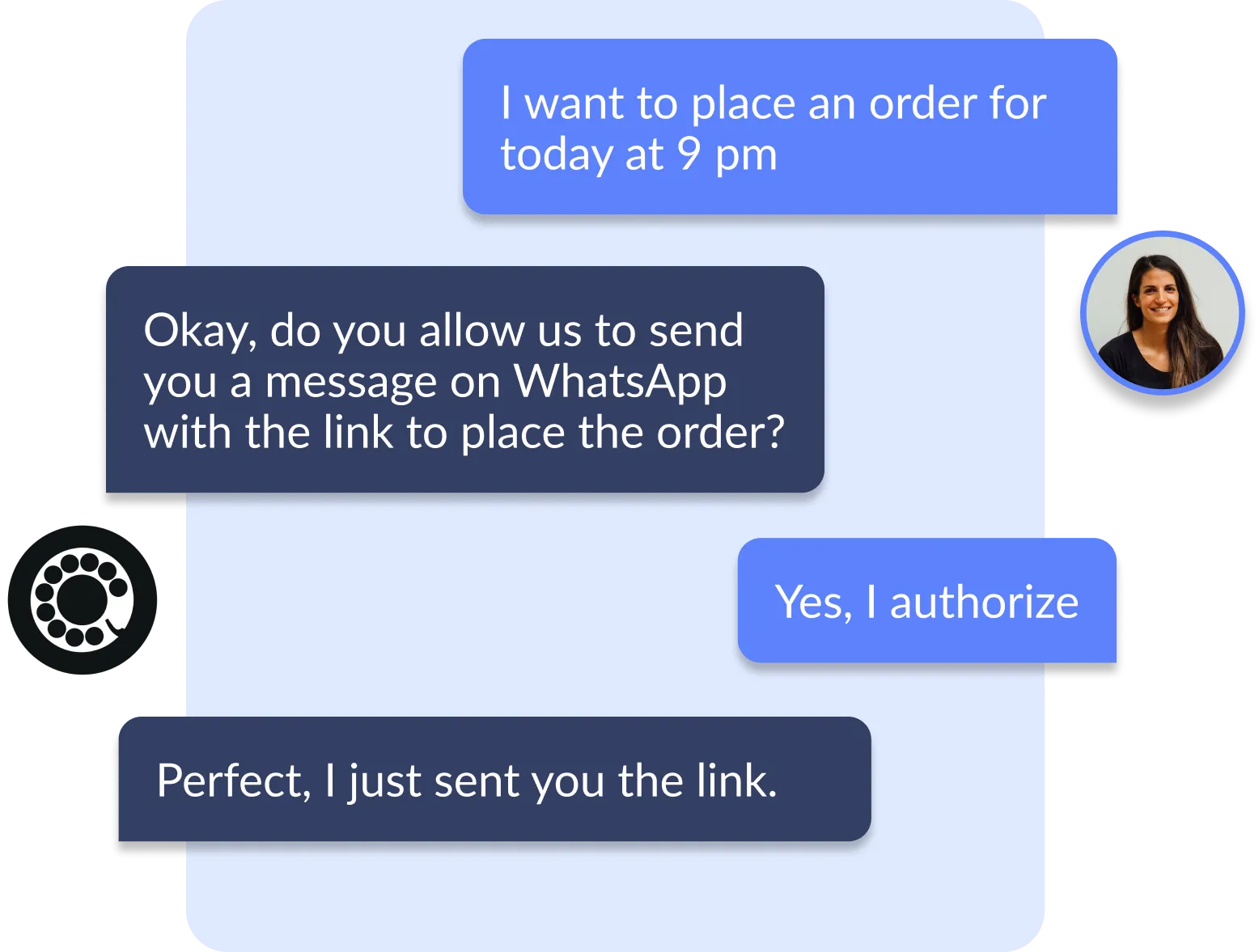
From here, your bot is ready to engage with customers about delivery inquiries. Below is an example of a typical conversation between a customer and our WhatsApp bot.
-
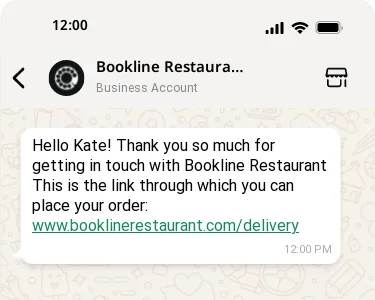
After the customer agrees to receive a delivery link via WhatsApp, they’ll see a message like the one below in their inbox.