
Web page
Two WordPress plugins that put a chat button on your site. Pick whichever fits you better.
Joinchat for WhatsApp Chat
Section titled “Joinchat for WhatsApp Chat”
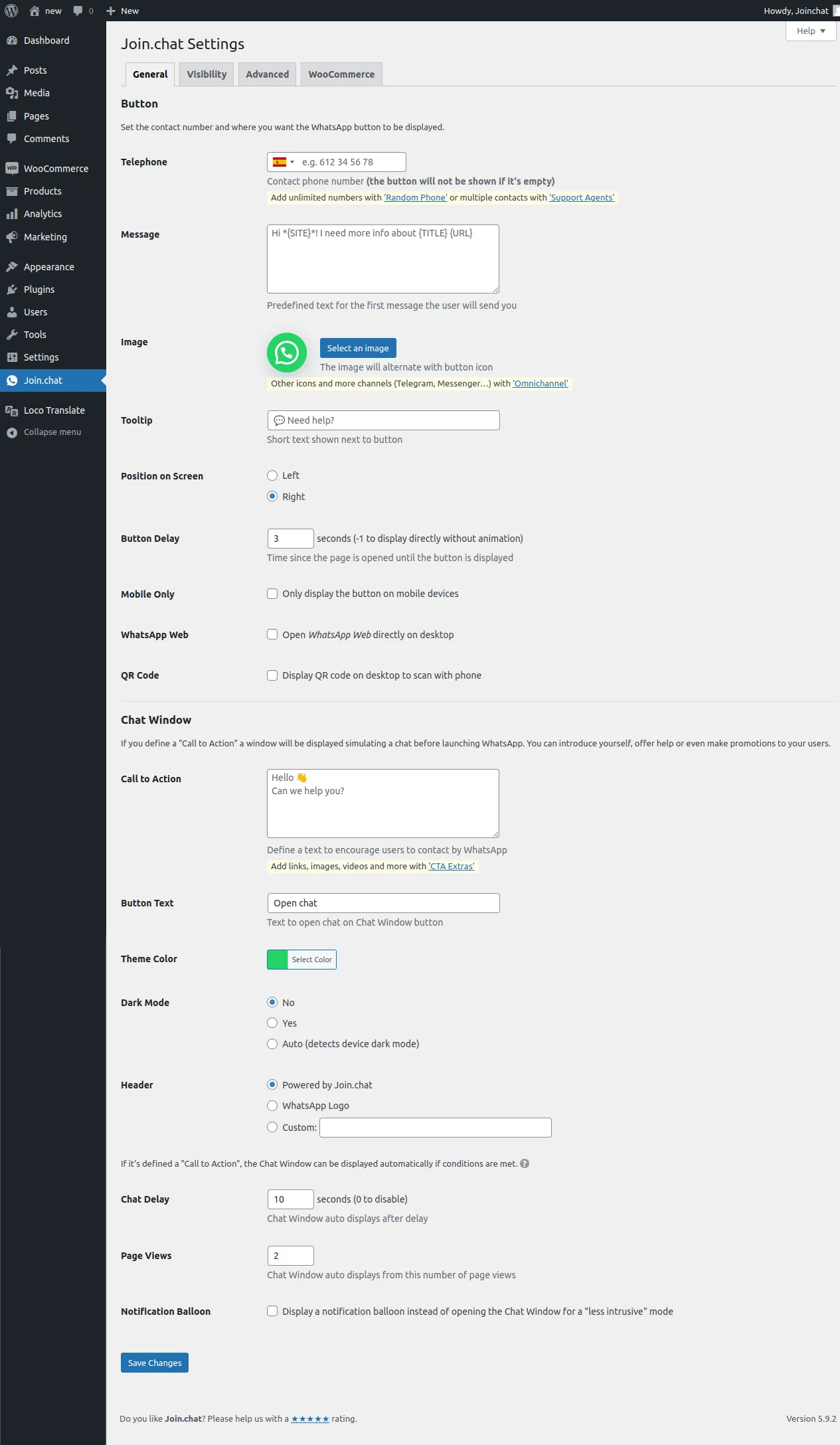
Once installed, configure it under Settings → Joinchat.
Enter your WhatsApp number. Remember to pick the country code by selecting your country’s flag.
You can also customise:
- Showing it on mobile only
- Its position on screen (right or left)
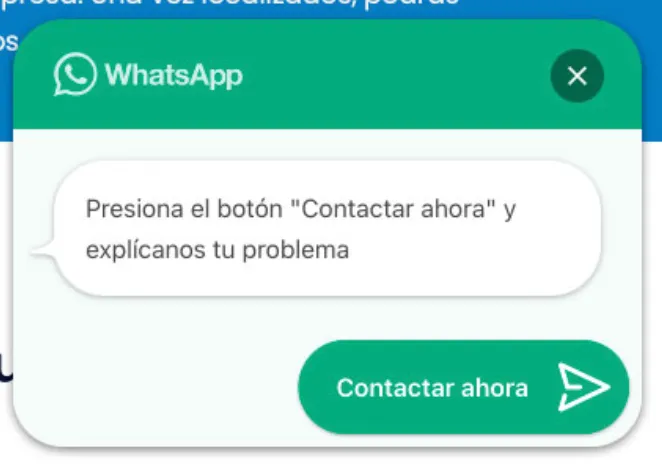
- An extra message, shown after a delay you choose or when the cursor hovers over the button
- An opening message for the conversation, which can include values from the current page
On top of that, each page or post has its own settings where you can edit the button’s message or hide it.
Click to Chat for WhatsApp Chat
Section titled “Click to Chat for WhatsApp Chat”
Once installed, configure it from the WordPress menu → Click to chat.
There you can:
- Customise how the button looks
- Hide the button by page type, post or ID
- Place the button in a sidebar or anywhere else with a shortcode
Click to Chat has plenty more customisation options, but to get it running quickly you only need:
- Turn on the floating button: select Yes under Enable Floating Styles
- Make the button open a chat: select Chat under Return Type
- Add the number linked to your WhatsApp account: enter it with its country code and without the
+sign under WhatsApp Number