
Campaigns
Send WhatsApp messages to your contacts and see how many are delivered, read and clicked.
Campaigns lets you send WhatsApp messages to your contacts (for example, to win back customers, announce a promotion or ask for a review) and see how they perform: how many are delivered, how many are read and how many get clicks.
You can open Campaigns from the side menu, in the Customers section, or at:
https://app.bookline.ai/campaigns
The campaigns page
Section titled “The campaigns page”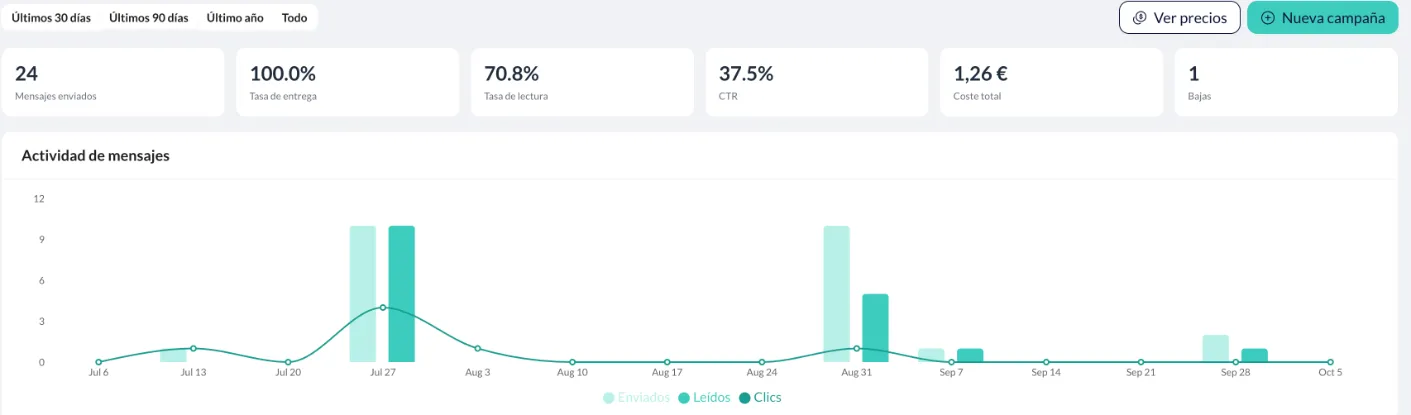
At the top you choose the period: Last 30 days, Last 90 days (default), Last year or All time. The View prices and New campaign buttons are in the same bar.
Period summary
- Messages sent
- Delivery rate
- Read rate
- CTR: the percentage of messages with a link click.
- Total cost: doesn’t include pending or scheduled campaigns.
- Opt-outs: contacts who have unsubscribed from marketing.
Message activity is a chart with Sent, Read (bars) and Clicks (line). It’s grouped by week for 30 and 90 days, and by month for Last year and All time.
Campaign table. You can search with Quick search and filter by Status and Type. Each row shows Campaign (with the template name below), Status, Date, Audience, Funnel, CTR, Cost and Opt-outs. A cost with “~” is an estimate.

The statuses are Pending, Scheduled, In progress, Completed, Failed and Cancelled. Click a row to open its details. Under Actions you have:
- Copy campaign: creates a new one with the same name (plus “(Copy)”), the same audience, channel, template and language. You have to enter the template variables and the schedule again.
- Cancel campaign: only while it’s Pending, Scheduled or In progress.
- Delete campaign.
Campaign limit
Section titled “Campaign limit”Your account has a maximum number of campaigns per period. When you reach it, New campaign is disabled and a notice shows the renewal date, if there is one. To raise the limit, contact support.
View prices
Section titled “View prices”View prices opens WhatsApp prices: the price per marketing template message based on the recipient’s market (the phone number’s country). You can look up a market with Search market. Prices may change.
Create a campaign
Section titled “Create a campaign”Click New campaign. The wizard has four steps; you can’t move on until you complete the current one.
1. Details
Section titled “1. Details”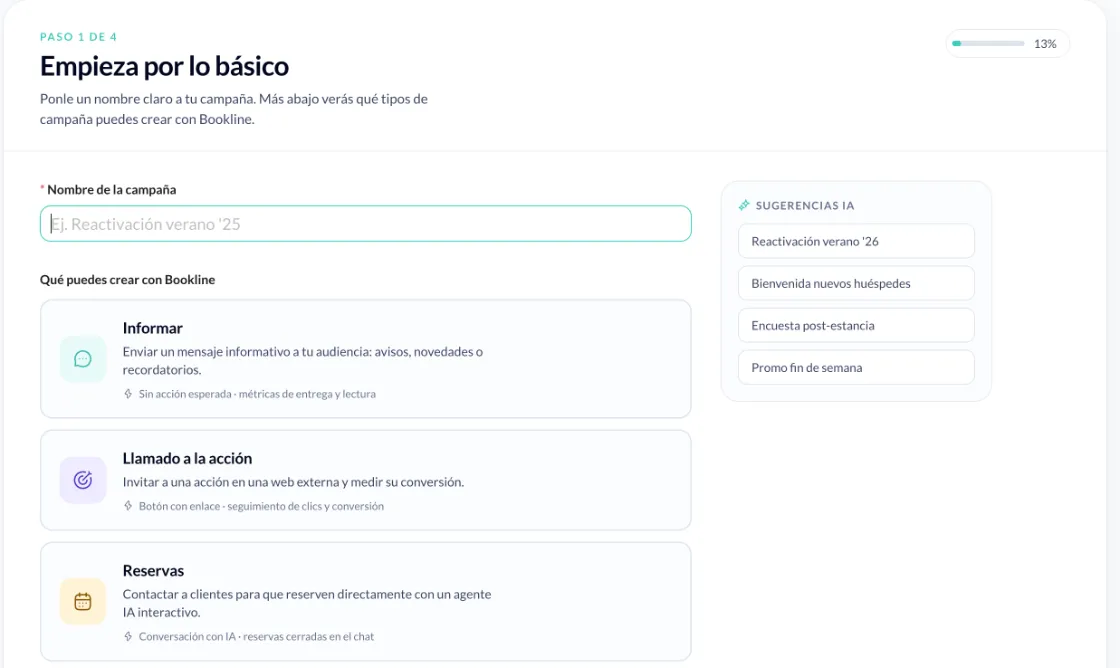
Enter the Campaign name (required, up to 120 characters). If you need ideas, AI Suggestions proposes four sample names.
Below, the wizard reminds you what you can do with Bookline: Inform (delivery and read metrics), Call to action (a button with a link, with click tracking) and Reservations (an AI conversation to complete bookings in the chat). They’re just for guidance: you don’t have to pick one.
2. Audience
Section titled “2. Audience”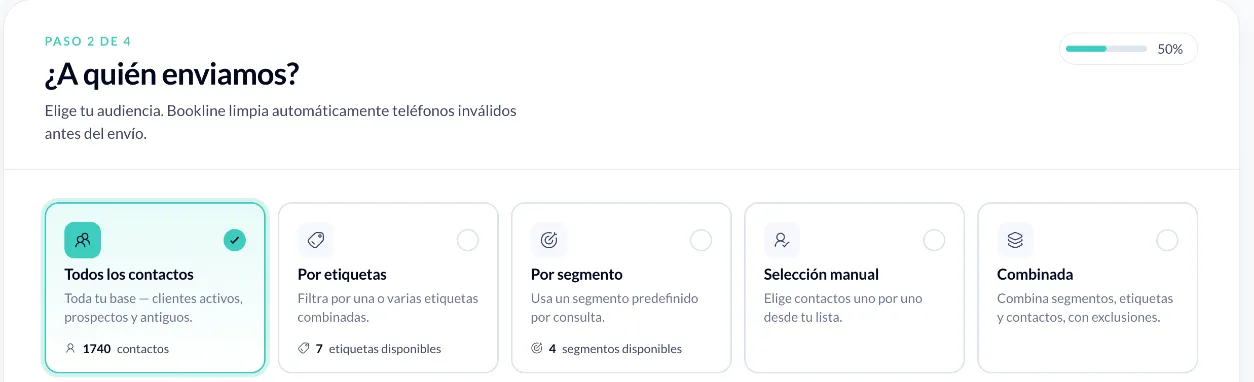
Choose who to send it to. Bookline automatically removes invalid phone numbers before sending.
- All contacts: your whole contact base.
- By tags: contacts with any of the tags you choose.
- By segment: a group defined by how customers have interacted with your assistants (see below).
- Manual selection: you pick contacts one by one with Choose contacts. You can search by name, email or phone, filter by country and create a new contact without leaving the wizard.
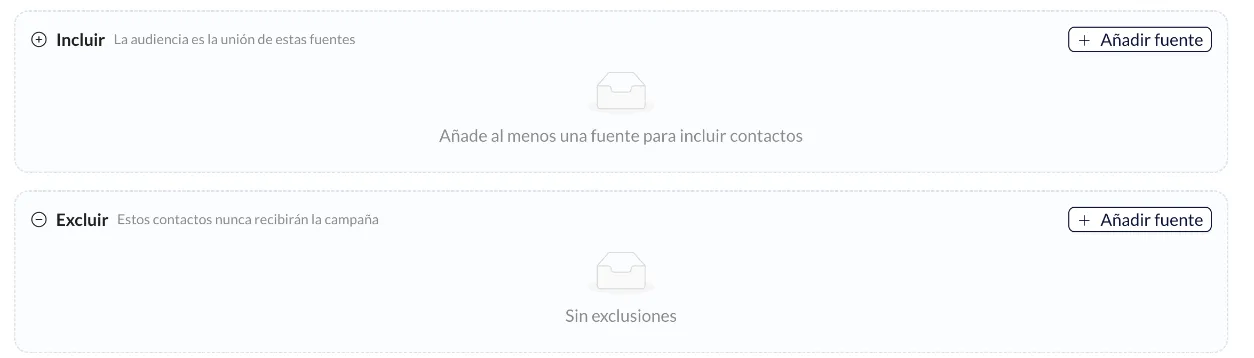
- Combined: mixes sources and exclusions. In Include you add sources with Add source (all contacts, tags, a segment or specific contacts). In Exclude you add the ones that must never receive the campaign. The audience is the sum of the sources you include, minus the ones you exclude; exclusions always win.
On the right, Estimated audience shows how many contacts will receive the campaign and a preview. See full list opens the whole list.
Contact limit per campaign. If your account has a maximum number of contacts per campaign and you go over it, the wizard warns you: only the first contacts up to the limit will be sent the message. To raise the limit, contact support.
Segments
Section titled “Segments”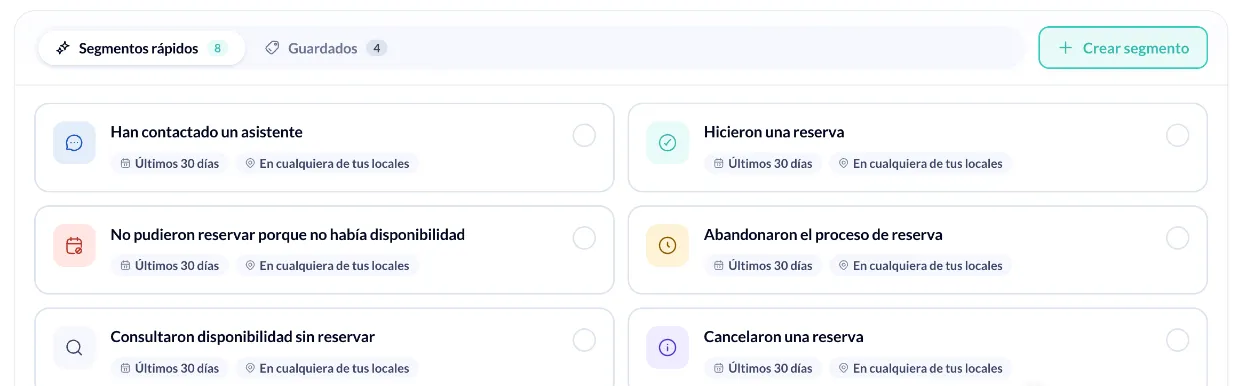
With By segment you can choose a quick segment, a saved one, or create one with Create segment. The quick segments are:
- Contacted an assistant
- They made a reservation
- They couldn’t make a reservation because there was no availability
- They abandoned the booking process
- Checked availability without booking
- They cancelled a reservation
- They asked to speak with an agent
- There was an error in the conversation
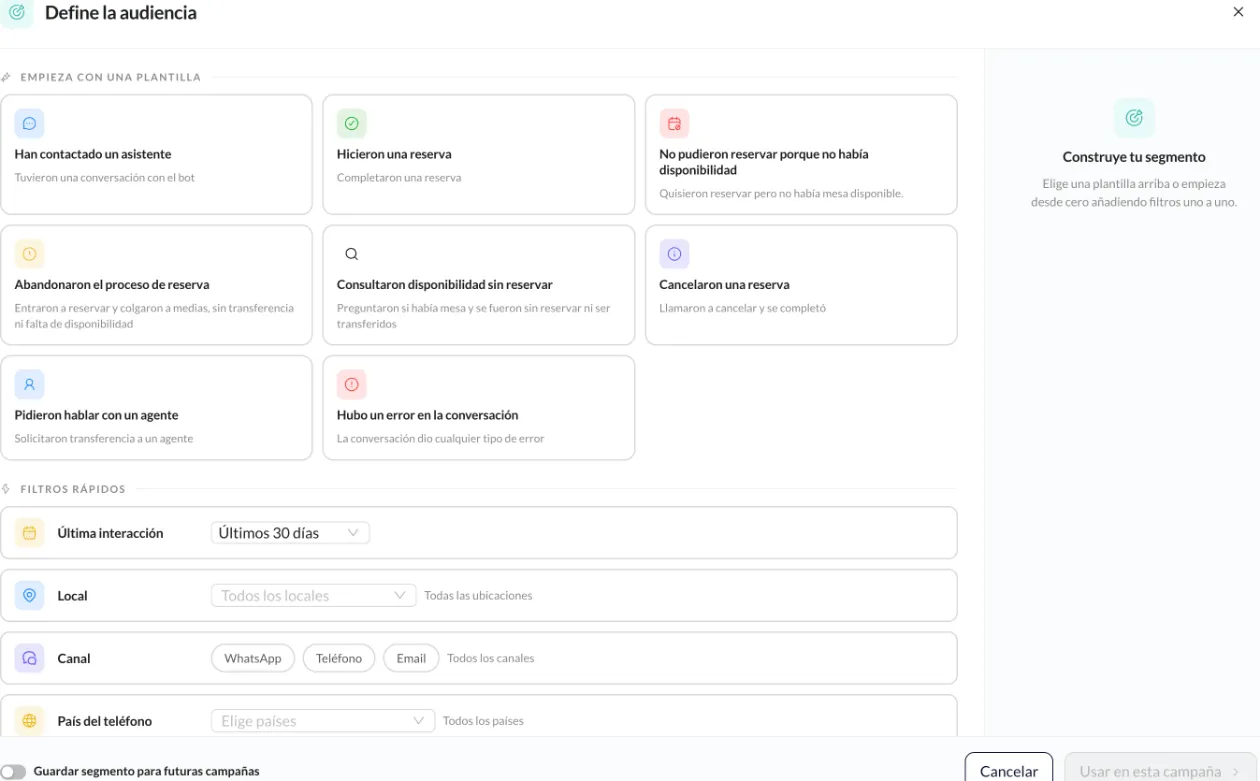
In Define the audience you can start from a template or use the filters: Last interaction, Venue, Channel (WhatsApp, Phone, Email) and Phone country. In Advanced filters you add conditions on what customers did or didn’t do in their conversations. Calculate estimation shows you how many contacts match.
If you turn on Save segment for future campaigns and give it a name, the segment is stored under Saved; if not, Use in this campaign applies it just once. You manage segments from the campaign wizard.
3. Message
Section titled “3. Message”Campaigns are sent via WhatsApp. Choose:
- Channel: your WhatsApp number. It shows the daily message limit WhatsApp allows for that number. If your audience goes over it, the wizard warns you.
- Template: choose from the ones available for that channel; you can search by name and see a preview. Create new template opens the channel’s template manager in another tab. If the template uses the contact’s name, contacts without a name are excluded automatically.
- Fallback language: each contact gets the message in their own language if the template has it. If not, this one is used.
- Template variables: fill in the details specific to this campaign (for example, a link, a coupon code, a deadline or a location). Contact variables, such as their name, are filled in automatically when sending.
4. Summary
Section titled “4. Summary”Review and launch shows:
- Valid contacts, Phoneless / invalid and Opt-out / blocked (contacts who have unsubscribed from marketing).
- Campaign detail: name, audience, channel, template and language, with a shortcut to edit each one.
- Programming: Send now or Schedule, with a date and time (it can’t be in the past; the time zone is your browser’s and you can change it).
- Estimated cost: the total, the average price per message and the breakdown by market. The actual cost depends on WhatsApp’s current rates.
Click Launch campaign (or Schedule campaign) and confirm: a launched campaign can’t be undone, although you can cancel it as long as it hasn’t finished. When it’s done you can click View details or Create another.
Campaign details
Section titled “Campaign details”Click a campaign to see how it went.
- Message funnel: from the estimated audience to the Read messages (and Link clicks, if the template has a link). It also shows how many contacts were excluded as Opt-out / over limit, how many have Missing template requirements and how many ended up Failed or In transit. A message only counts as Read if the recipient has read receipts turned on.
- Opt-outs: how many contacts unsubscribed from marketing by replying to this campaign.
- Engagement (if there are links): click rate, time to click, clicks by time of day and clicks by button.
- Cost: Estimated and Actual (available once it’s billed), with a breakdown by market.
- Contact activity: each contact’s status (Read, Received, Sent, Failed, Pending). You can filter by Only reached, Only failed or Only with clicks.
- Send language and Configuration: channel, template, fallback language, audience and launch date.
Failed messages
Section titled “Failed messages”View details under Failed opens Detail of failed messages, with the phone numbers grouped by reason (for example, the number doesn’t have WhatsApp or can’t receive the message). Download CSV exports them.
If the campaign has finished and some messages failed, Resend to failed creates a new campaign just for those contacts.