
Pages
A links page for your restaurant (menu, bookings, delivery…), ready for your Instagram bio, a table QR code or your Google profile, with each place's visits counted separately.
A page is a simple web page for your restaurant with the links your guests look for: the menu, your website, delivery, events… It’s what usually goes in your Instagram bio, on a QR code on the table or on your Google profile.
What Bookline adds is that it keeps the page up to date and tells you where each visit comes from:
- Always up to date. The menu, website and delivery links are read from your venue’s profile. Change the menu in Bookline and the page already points to the new one.
- One link per place. The link in your Instagram bio is not the one printed on the table QR code, so you know how many people arrive through each.
- In your guest’s language. A tourist sees the page in their language, if you have it translated.
You’ll find Pages in the side menu, under Operations, or at:
What restaurants use it for
Section titled “What restaurants use it for”| Where you put it | What you get |
|---|---|
| Instagram bio | One link that leads to the menu, bookings and delivery. |
| Table QR code | Guests scan it and see the menu in their language, without asking the waiter. |
| Google profile | People coming from Google land straight on your links, always up to date. |
| Flyers and posters | A printed QR code that never expires: change the menu and the QR still works. |
| Email signature, TikTok, Facebook, your website | The same content, with its own link so you can measure each channel. |
Creating a page
Section titled “Creating a page”-
In Pages, click Add.
-
Under Assigned to, choose whether the page is for a Venue or a Group, then which one.
- Venue: a page for a single restaurant.
- Group: one page for several venues at once (see Group pages).
Once you pick it, the title is filled in with the venue’s name in every language. You can change it.
-
Add a description if you like: a short line under the name (“Mediterranean food by the sea”).
-
Check the links, appearance and languages (explained below).
-
Click Save.
On the right you always see how the page looks on a phone, exactly as your guests will see it. If the page has several languages, you can switch language in the preview.
Each button on the page is a link. There are two kinds:
- Venue field: read from the venue’s profile and kept up to date automatically. You can choose Menu, Website, Order delivery and Events.
- Fixed link: any address you type, such as a promotion, a form or your TripAdvisor profile. You give it the button text (“Christmas menu”).
The button text of a venue field is optional: leave it empty and the field’s name is shown in the guest’s language (“Carta”, “Menu”, “Carte”…).
Reorder the links with the arrows and remove the ones you don’t want.
Appearance
Section titled “Appearance”Under Appearance you decide how the page looks.
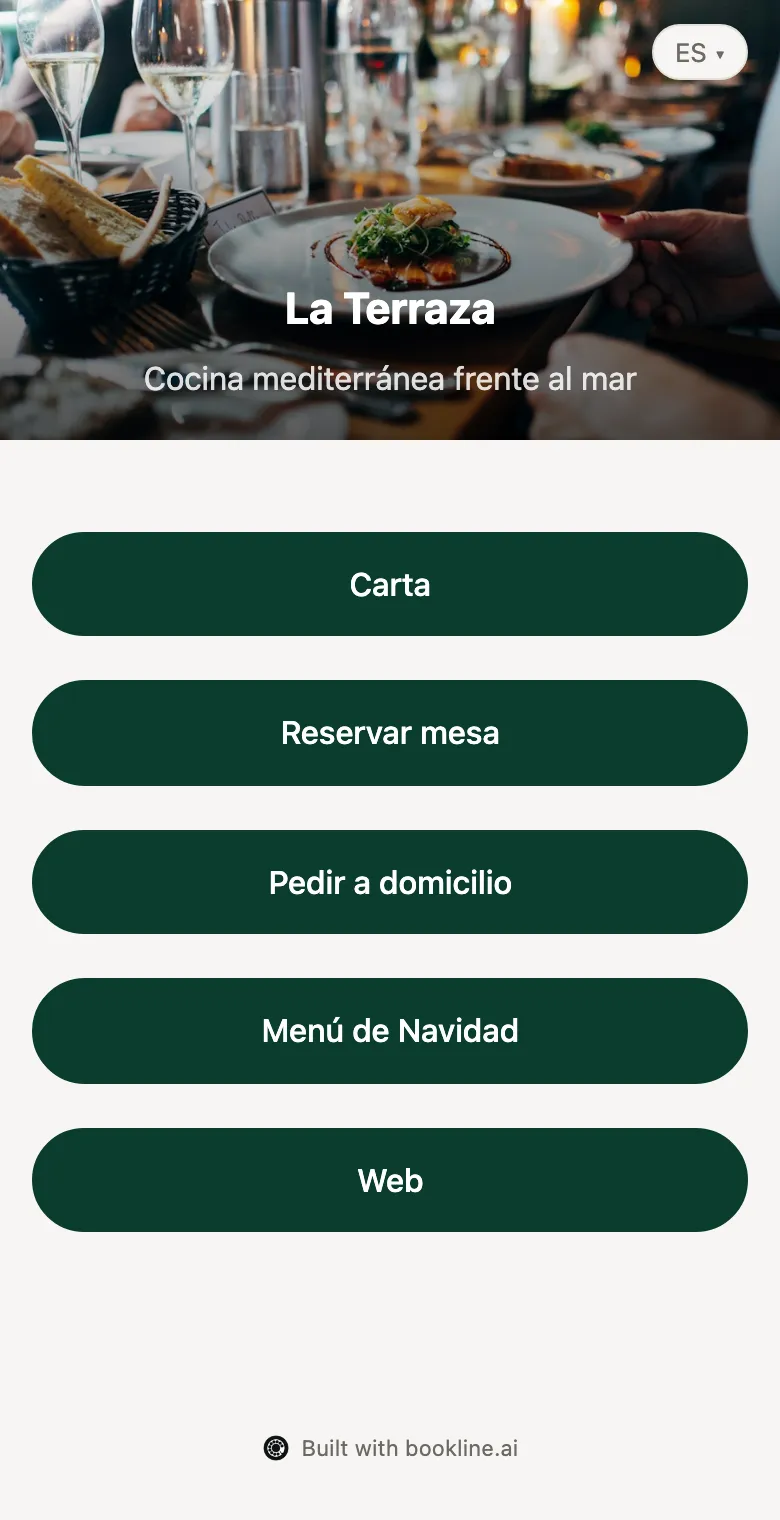
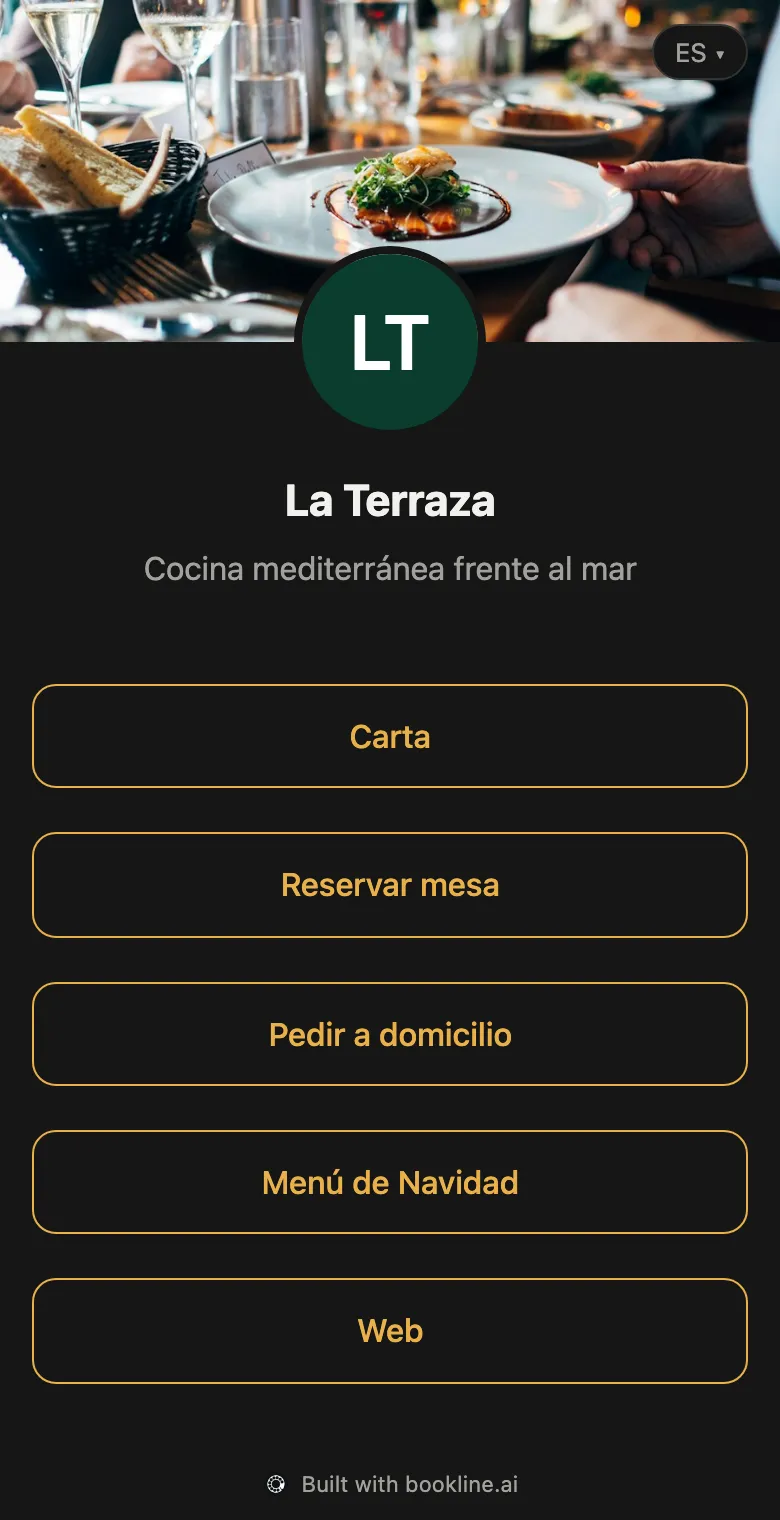
Header: what sits at the top, above the links.
| Header | What it looks like |
|---|---|
| Banner | A full-width photo with the name over it. This is the default. |
| Cover and logo | A wide cover with your round logo over it. |
| Round photo | The photo in a circle, the name below. |
| Card | The photo across the top of a card, the name inside. |
| No image | Just the name and the description. |
Images: for the cover and the logo you choose where each one comes from:
- Venue photo: the photo on the venue’s profile.
- Upload image: your own image (JPG, PNG or WEBP).
- None: not shown.
Colours and buttons:
- Theme: Automatic (light or dark following each guest’s phone), Light, Dark or Custom, with the background colour you want.
- Accent colour: your brand colour for the buttons. The button text turns light or dark depending on the colour, so it always reads well.
- Button shape: Rounded, Pill or Square.
- Button style: Soft, Filled (with your accent colour) or Outline.
Languages
Section titled “Languages”Under Languages you decide which languages the page is in and how each guest’s is chosen:
- Default language: the page’s language when the guest speaks none of the ones you offer, and the one used when a text is missing a translation.
- Offered languages: the languages the page is in. For each one, translate the title, the description and the button texts with Translations.
- Guest’s language:
- Detect from the browser: each guest sees the page in their phone’s language, if it’s offered. The usual choice, especially with tourists.
- Always the default language: everyone sees the default language unless they pick another one in the switcher.
- Language switcher on the page:
- Dropdown: a small button in the corner with the current language (“EN ▾”).
- List: every language under the links.
- None: no switcher; the guest’s phone decides.
A guest who changes language in the switcher keeps it the next time they open the page.
Publishing the page
Section titled “Publishing the page”A saved page isn’t anywhere yet: to put it on Instagram, on a QR code or on Google you need its link. In the Pages list, click the row’s Publish icon.
A different link for each place
Section titled “A different link for each place”This is the most important part. Each place you put the page in gets its own link: one for the Instagram bio, one for the table QR code, one for your Google profile…
That way, the numbers tell you where each visit comes from: how many people open your page from Instagram, how many scan the table QR code and how many come from Google. Paste the same link in two places and their visits add up, so you can’t tell which one works.
To create one:
- Under Where will you put the page?, choose the place. Only places that don’t have a link yet are listed.
- Click Create link.
- The link appears in the table. Copy it with the copy button and paste it only in that place.
Links are short, like https://u.bookline.io/abc123, and never expire. You can change the page (links, appearance, languages) as often as you like: the link stays the same and always shows the latest saved version. That’s why a printed QR code keeps working when you change the menu.
QR codes
Section titled “QR codes”For Table QR code and Printed QR (flyers, posters) links, the table also has a QR button. It shows the code and lets you Download QR in high resolution, ready to print.
The numbers
Section titled “The numbers”There are two places to see how your page is doing.
In Publish
Section titled “In Publish”In the Publish table, each link shows its total since you created it:
- Views: how many times the page was opened from that place.
- Clicks: how many times a button on the page was tapped after arriving from that place.
In Metrics
Section titled “In Metrics”In the Pages list, each row’s Metrics icon opens that page’s detail. Pick the period at the top: 7 days, 30 days, 90 days or 1 year.
- Summary: Views, Visitors, Clicks and Click rate (out of every 100 views, how many end in a click).
- Over time: views and clicks per day.
- By place: every published link with its views, visitors, clicks and click rate, including the ones without visits yet.
- By button: which buttons on the page get tapped most. On a group page, also for which venue.
An example for La Terraza over the last 30 days:
| Place | Views | Clicks | Click rate |
|---|---|---|---|
| Instagram bio | 420 | 180 | 43% |
| Table QR code | 310 | 290 | 94% |
| Google profile | 95 | 40 | 42% |
How to read it: the table QR code brings fewer visits than Instagram, but almost all of them end in a click (usually the menu). Instagram brings more people, but fewer than half tap anything. If By button shows that hardly anyone reaches “Book a table”, it may be worth moving it to the top.
Group pages
Section titled “Group pages”If you have several restaurants, you can make one page for the whole group. It works the same, with one difference for venue fields: each field appears once for every venue in the group that has it.
For example, a Menu link on a group of three venues shows three buttons, one per venue, each with its name. You can give them a heading (“Our menus”).
Fixed links appear once, as on a single venue’s page.
Deleting a page
Section titled “Deleting a page”In the Pages list, click the row’s bin icon. The page stops showing and all its links stop working, printed QR codes included. If the page is in use somewhere, remove the link first or replace it with another page’s.
Can I change the page after publishing it? Yes, as often as you like. Links and QR codes don’t change: they always show the latest saved version.
I changed the menu on the venue’s profile. Do I need to edit the page? No. Venue fields are read from the profile, so the page already points to the new menu.
Why is a button missing from the page? Most likely it’s a venue field that’s empty on the profile. The editor warns you under that link. Fill it in under Venues.
Can I use the same link on Instagram and Facebook? You can, but their visits will add up and you won’t know which works better. Create a link for each.
What’s at the bottom of the page? A small line, “Built with bookline.ai”, with the Bookline logo.