
Venue booking policy
Set whether your venue takes bookings, which booking engine it uses, the rules that apply and how your customers can book.
Each venue’s Bookings section sets whether it takes bookings, who manages them and the rules that apply. The assistant uses this information to answer customers and to create, change or turn down bookings.
You’ll find it when you create or edit a venue, under Venues > [your venue] > Bookings.
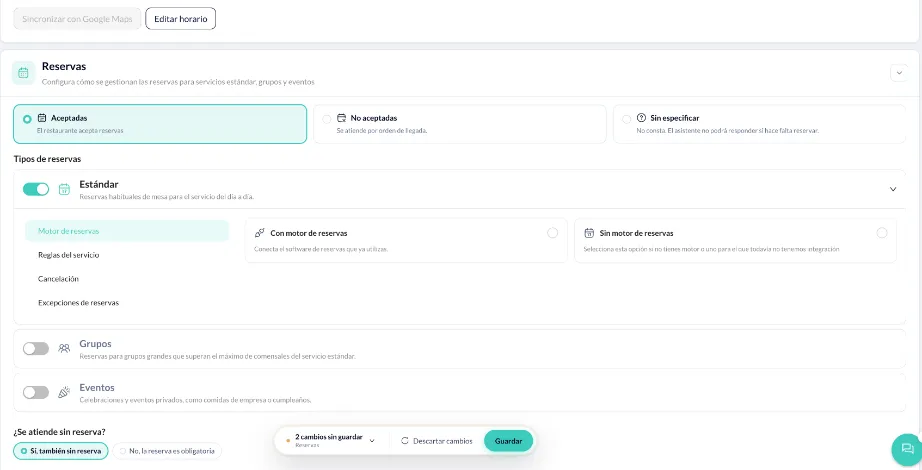
1. Does the venue take bookings?
Section titled “1. Does the venue take bookings?”Choose one of the three options:
- Accepted: the restaurant takes bookings. The rest of the options on this page are shown.
- Not accepted: customers are served on a first-come, first-served basis.
- Not specified: no information. The assistant won’t be able to say whether a booking is needed.
2. Reservation types
Section titled “2. Reservation types”Use the toggle to turn on the reservation types the venue handles:
- Standard: regular table bookings for day-to-day service.
- Groups: bookings for large groups that go over the maximum number of guests for standard service.
- Events: celebrations and private events, such as company lunches or birthdays.
Each active type has its own menu with Booking engine, Rules of service, Cancellation (Standard only) and Reservation exceptions.
Booking engine
Section titled “Booking engine”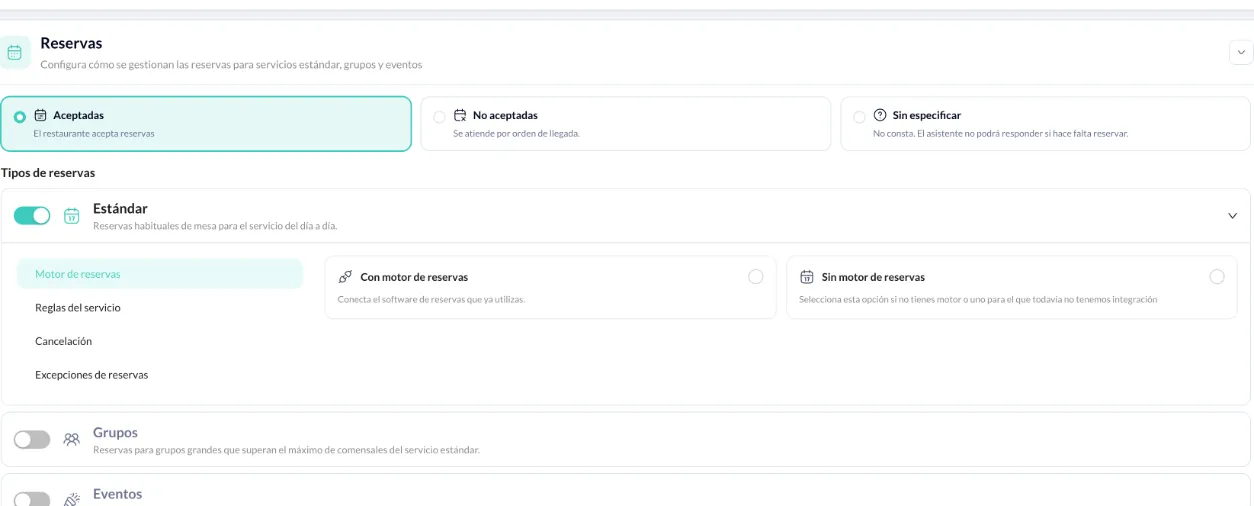
- With booking engine: connect the booking software you already use. Select it from the list. If it isn’t there, click Go to the Marketplace to connect it first.
- No booking engine: if you don’t have an engine, or yours isn’t integrated with Bookline yet. Save the venue and then click Configure schedule to set the hours when bookings are accepted.
You can’t save a reservation type set to With booking engine without choosing an engine.
Rules of service
Section titled “Rules of service”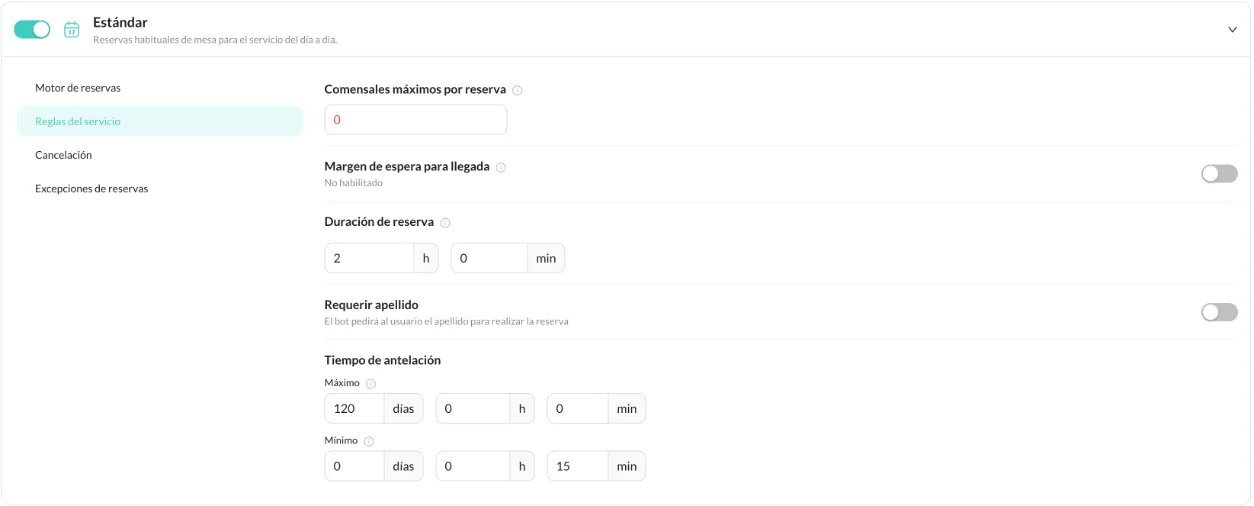
- Maximum number of guests per reservation (required). In Groups, the minimum starts just above the Standard maximum, and the portal shows the resulting range. For example, if Standard allows up to 8 guests, groups start at 9 or more.
- Arrival wait time margin: how long the table is held after the booking time. Off by default; when you turn it on, it suggests 15 minutes.
- Booking duration: how long a booking takes up the table (120 minutes by default). It doesn’t appear with some booking engines.
- Require last name: the assistant asks for the last name to make the booking. Some engines require it, in which case it appears turned on and locked.
- Advance notice: Maximum is the furthest in advance a customer can book (120 days by default) and Minimum is the shortest notice allowed (15 minutes by default).
Cancellation (Standard only)
Section titled “Cancellation (Standard only)”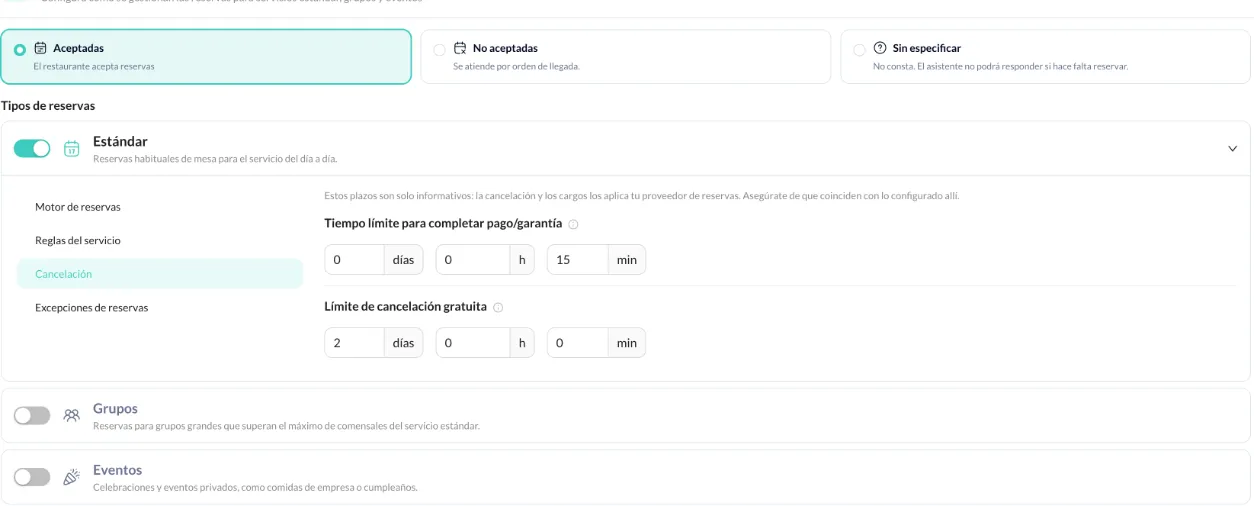
- Deadline to complete payment/guarantee: how long the customer has to complete the payment or guarantee (15 minutes by default).
- Free cancellation deadline: after this point, the assistant tells customers they can’t cancel free of charge (48 hours by default).
If you use an external booking engine, these time limits are for information only: your provider applies cancellations and charges. Make sure they match what you’ve set up there.
Reservation exceptions
Section titled “Reservation exceptions”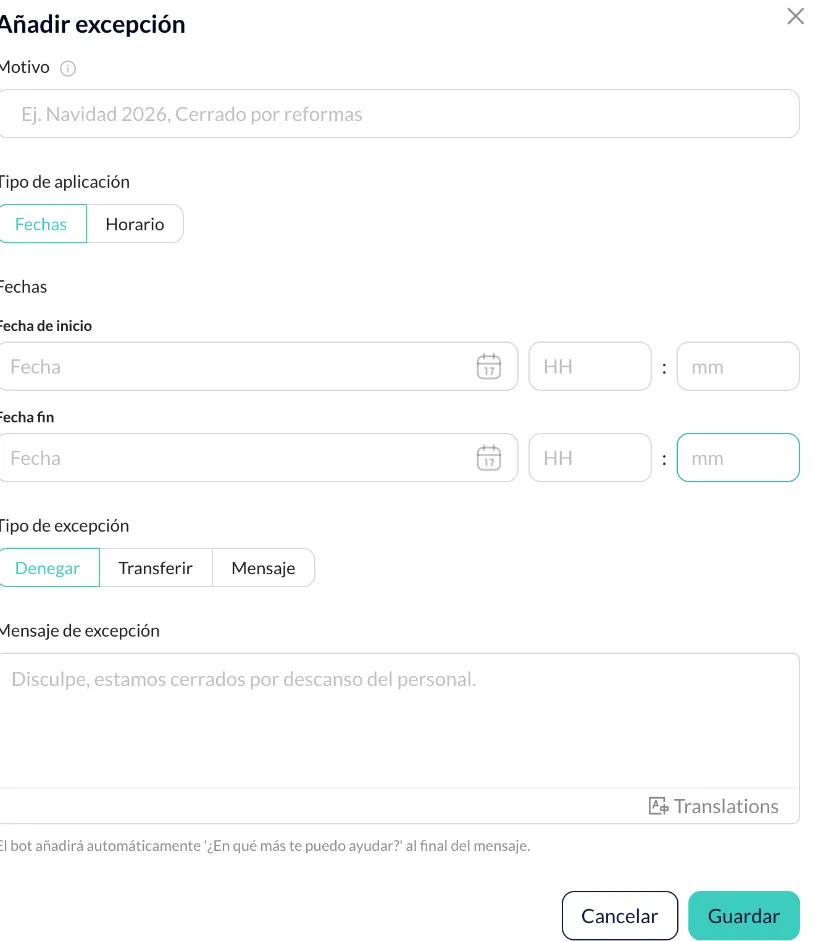
Use them for dates or times when the assistant shouldn’t follow the usual rules. Click Add exception and fill in:
- Reason: a name to identify it, for example “August holidays”.
- Type of application: by Dates or by Schedule.
- Also apply: copies the exception to the other active reservation types.
- Start and end of the period.
- Type of exception:
- Deny: the assistant doesn’t take bookings during that period.
- Transfer: the assistant transfers the call to your team, using the forwarding numbers set up in your agent.
- Message: the assistant gives a message and carries on with the booking.
- Exception message (required): what the assistant will say. If you don’t write it in every language, it’s translated automatically.
You can’t combine Deny and Transfer in the same period.
Example: for Restaurante La Plaza, an “August holidays” exception from 16 to 31 August, of type Deny, with the message “We’ll be closed for holidays from 16 to 31 August”.
3. How customers book
Section titled “3. How customers book”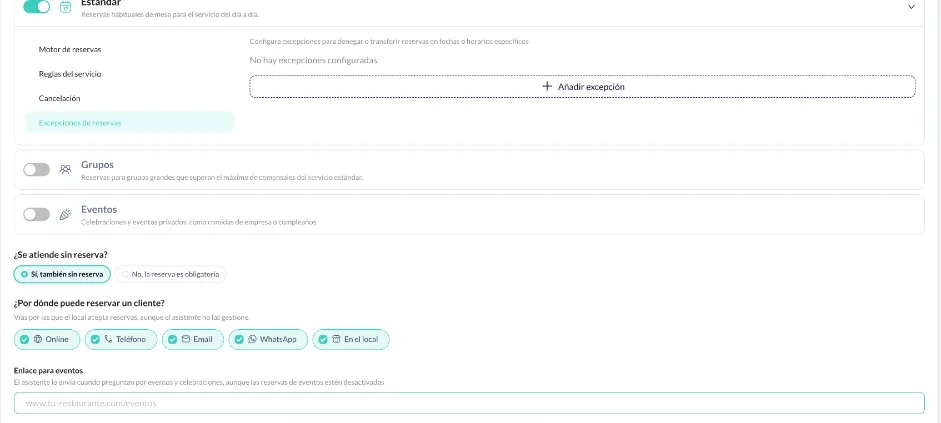
- Are walk-ins served?: Yes, walk-ins served or No, booking required.
- Where can a guest book?: select the channels through which the venue takes bookings (Online, Phone, Email, WhatsApp, At the venue), even if the assistant doesn’t handle all of them. When you choose Accepted, they’re all selected.
- Events link: the assistant sends it when customers ask about events and celebrations, even if event bookings are turned off.