
Create a new agent
Create a voice agent for your venue with the four-step wizard and a test call.
In Agents, click Add. A four-step wizard opens and, at the end, a guided setup with a test call.
1. Establishment
Section titled “1. Establishment”Choose where you want to activate the agent:
- One location: search for the venue by name and select it.
- Chain / Group: choose one of your venue groups.
Click Next. If you don’t have any venues yet, the wizard offers Create location (see Add a restaurant).
2. Agent
Section titled “2. Agent”Choose the agent type:
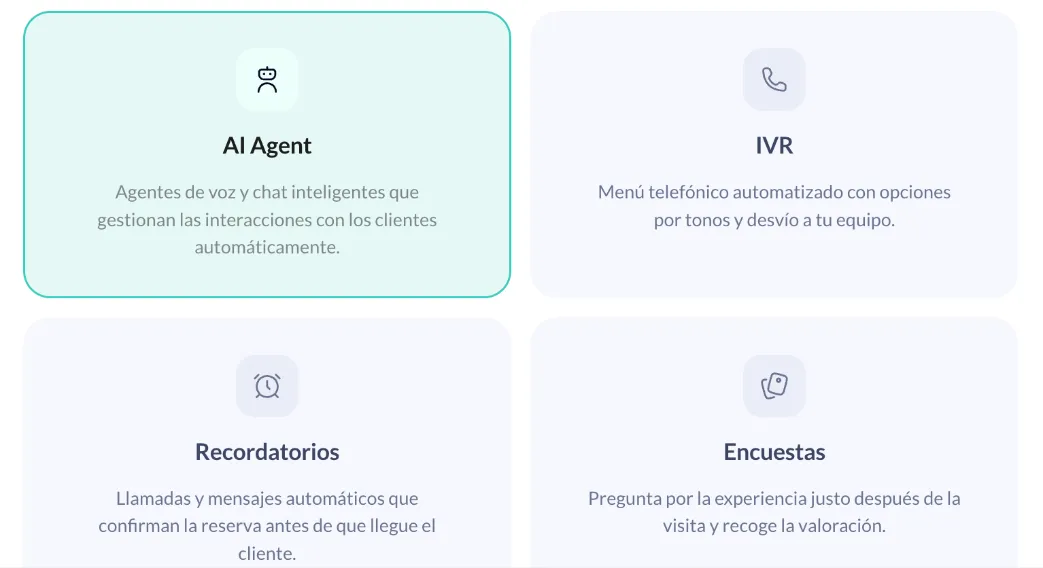
- AI Agent: smart voice and chat agents that handle customer interactions automatically.
- IVR, Reminders and Surveys appear grayed out: the support team activates them. If you’re interested, contact your account manager.
3. Channel
Section titled “3. Channel”- Voice agent: voice agent that automatically handles phone calls.
- Text agent: conversational agent that replies to your customers’ text messages. It appears grayed out: the support team activates it. If you’re interested, contact your account manager.
Voice agent is only offered if you chose One location, and Text agent for restaurants and for Chain / Group.
4. Template
Section titled “4. Template”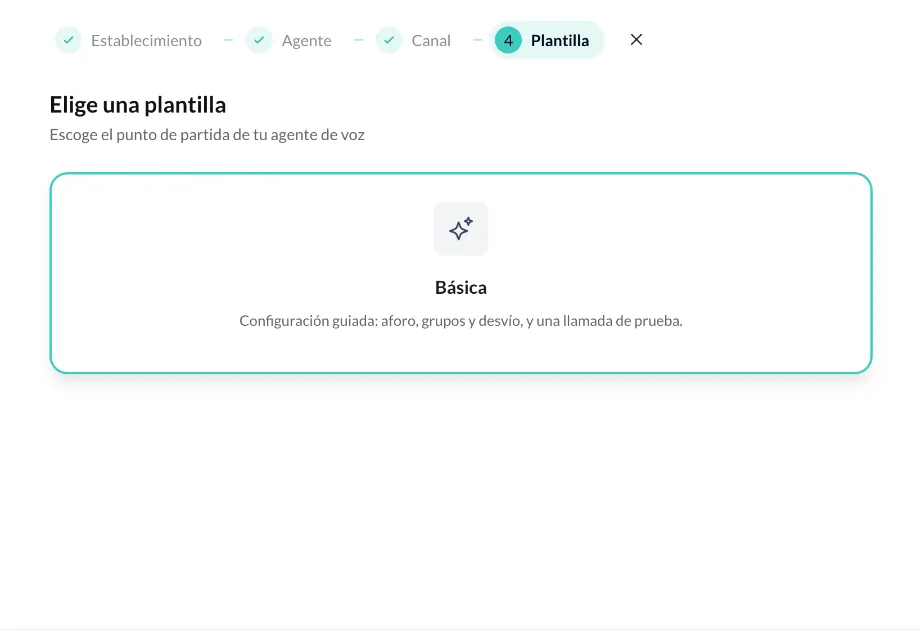
Choose Basic: a guided setup covering capacity, groups and handover, plus a test call.
Guided setup
Section titled “Guided setup”Capacity and groups
Section titled “Capacity and groups”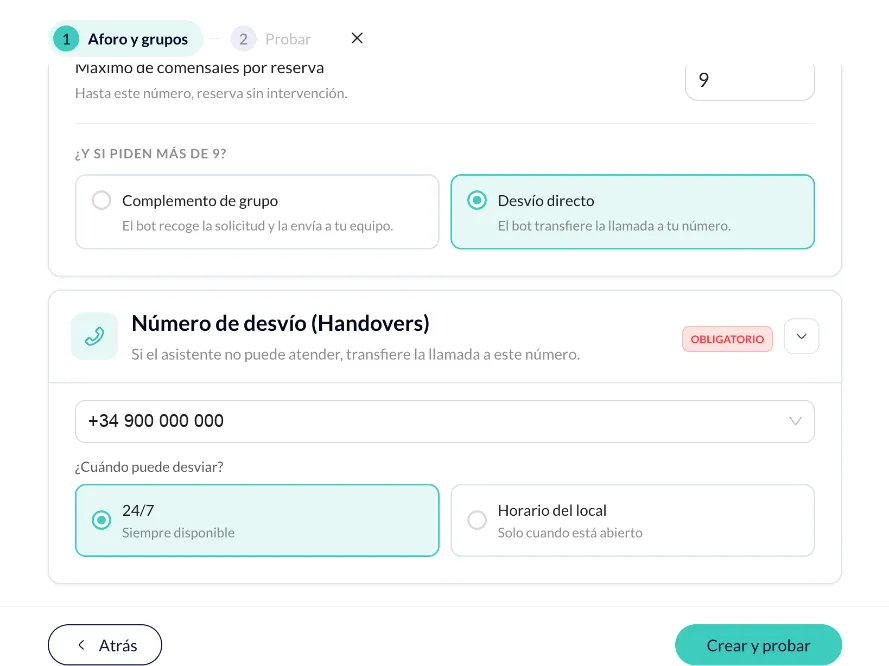
- Maximum diners per reservation: up to this number, the assistant books without your team stepping in. For Restaurante La Plaza, 8.
- And if they ask for more?: what the assistant does when a booking goes over that maximum:
- Group add-on: the assistant collects the request and sends it to your team. It asks for the email or WhatsApp number where you want to receive these requests, and the venue must have group bookings set up.
- Direct handover: the assistant transfers the call to your number.
Handover number
Section titled “Handover number”Required. This is the number the assistant transfers the call to when it can’t handle it. You can use the venue’s phone or another number.
When can it hand over?
- 24/7: always available.
- Venue hours: only when the venue is open.
Click Create & test. The agent is created and you can make a test call from your browser to hear how it answers. You don’t need a phone number yet. You need an up-to-date version of Chrome, Edge or Safari, and you must allow microphone access. See Test your agent.
After that, you can adjust everything else from the agent’s page: see Set up an AI agent for restaurants. For the agent to answer real calls, assign it a number in Channels.