
Dashboard
A summary of what your assistant has done: calls answered, bookings, estimated revenue and hours saved.
The Dashboard sums up what your assistant has done over a period: how many calls it answered, how many bookings it secured, how much money they represent and how much work it saved your team.
You can open the Dashboard from the side menu, with See the dashboard on your home page or at:
https://app.bookline.ai/dashboard
When you sign in to the portal you don’t land on the Dashboard but on your home page, which sums up the essentials for each venue. The Dashboard is where you do the detailed analysis.
Filters
Section titled “Filters”
- Venues: choose one or more venues. If you leave it empty, all of them are shown.
- Period: the date range. By default, the last 30 days. There are shortcuts (Today, Yesterday, 7D, 30D, 3M, 6M, 12M) and a Month picker. Data is available from April 1, 2026.
- Channels: Phone.
- Currency: the currency amounts are shown in. Exchange rates come from Exchange Rate API.
- Export: downloads a Dashboard report as PDF, Excel or CSV, choosing venues, period, channel, currency and metrics.
Below, the section bar takes you straight to each block. With Customize you pick a template (Full, Revenue, Operations or Voice), hide sections or change their order. Restore default panel undoes your changes.
Impact on the business
Section titled “Impact on the business”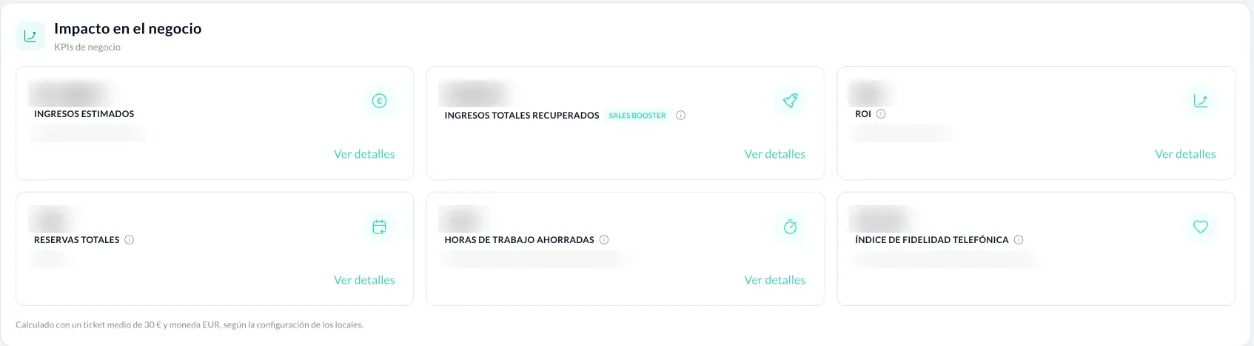
- Estimated income: diners from bookings × the venue’s average ticket.
- Total recovered revenue: bookings that would have been lost without the assistant (see Sales Booster).
- Return on Investment: (estimated income − cost) / cost, with the cost of the service prorated to the period.
- Total reservations: bookings the assistant created in the restaurant’s system, with the total number of diners.
- Hours of work saved: time your team didn’t have to spend on the phone, and what it’s worth in staff costs (€12/h by default; you can change it in See details).
- Phone Loyalty Index: the share of returning customers versus new customers.
See details opens the breakdown for each card.
Sales Booster
Section titled “Sales Booster”A breakdown of the bookings the assistant rescued:
- Out-of-hours bookings: made when no staff were available.
- Parallel calls converted: handled while the restaurant’s line was busy.
- Recovered with proposal: the customer accepted an alternative the assistant offered when there was no slot at the requested time.
Each booking counts in only one of these categories.
Automated operations
Section titled “Automated operations”Total calls answered and Notifications sent in the period. See details shows the notification analysis by type.
Conversion funnel
Section titled “Conversion funnel”From call to booking: how many calls end in a booking (direct or recovered with a proposal) and why the rest don’t convert (available but not converted, no availability, abandoned before interacting, no interaction). You can break down each stage to see the reasons, for example Time not available, Short notice or Excess of guests.
Global conversion
Section titled “Global conversion”Conversion rate With availability and Acceptance of proposals.
Call intelligence
Section titled “Call intelligence”- Unique clients, Medium duration call (mins), Repeat calls and Repeat callers.
- Main reasons for calling and Repeat callers by intent.
- Distribution of calls: a heat map by day of the week and time slot. With Concurrent you see the calls that overlap in time.
- Reservation distribution: which day the bookings are for, that is, the restaurant’s upcoming workload.
Reservation lifecycle
Section titled “Reservation lifecycle”Follows each of the assistant’s bookings until you know whether the guest came. It appears for venues that have their attendance records loaded: the export from their booking system (OpenTable, for example) with the final status of each booking.
With Creation date it counts the bookings made in the period; with Visit date, the ones whose visit falls in the period, whenever they were made.
The funnel
Section titled “The funnel”Each line subtracts from the one above, and every booking is on exactly one line:
- Managed: every booking and request the assistant made (the same as Total bookings).
- Minus the ones that were never confirmed. This happens with requests that need the restaurant’s approval, such as group or event requests, and with bookings that ask for a card:
- Rejected by the restaurant.
- Requests awaiting response: the restaurant has not answered yet and the booking date has not arrived.
- Expired without response: the booking date passed without the restaurant confirming or rejecting it, or the time to leave the card ran out.
- Abandoned by the guest: the date passed before the guest finished giving their details, so the restaurant never received it. Only shown when there are any.
- Confirmed: the bookings the assistant made on the spot and the requests the restaurant accepted, including those the guest cancelled later.
- Cancelled by the customer: cancelled through the assistant, in the restaurant’s booking system, or marked as cancelled in the attendance records. The booking system does not say who cancelled, so they count as cancelled by the customer.
- Expected: the ones the restaurant was expecting.
- Minus the ones without an outcome yet:
- Upcoming visits: the visit has not happened yet, or the loaded records do not cover its date yet.
- Created after the last import: made after the last date the records cover.
- No status recorded: the records cover the date but have no row for that booking.
- With outcome = Attended + No-show.
Attendance = Attended ÷ With outcome. The By reservation type table gives the same funnel for standard, group and event bookings.
How it is matched with the attendance records
Section titled “How it is matched with the attendance records”A row in the records belongs to one of the assistant’s bookings when the guest’s phone and the visit day match and the times are no more than 90 minutes apart. Each row goes to one booking only. If a guest booked twice for the same visit and cancelled one, the visit’s row goes to the one they kept.
Event requests are usually not in the restaurant’s booking system, so they have no row: they stay under No status recorded even when the restaurant accepted them.
Booking details
Section titled “Booking details”- Diners by booking type: standard bookings plus the group and event requests that were approved and still stand, by type and by venue.
- Group and event requests: each request counts on the day it was made, not on the booking date, in one of these statuses:
- Approved: the restaurant accepted it and it still stands.
- Pending: awaiting an answer and the booking date has not arrived.
- Expired without response: the date passed without an answer from the restaurant. With the Creation date view, they are the same group and event requests the Reservation lifecycle counts as expired.
- Rejected: rejected by the venue or cancelled by the guest, including the ones the guest never finished.
- Pending requests: the ones awaiting an answer, oldest first.
The lifecycle’s Confirmed and the details’ Approved need not match: the former include standard bookings and the requests the guest cancelled after they were accepted.
Comparing with an export from the booking system
Section titled “Comparing with an export from the booking system”If you compare the Dashboard with an export from your booking system, keep in mind:
- The same dates and the same criterion: the export filters by creation date or by visit date; pick the same view in the lifecycle.
- Only the assistant’s bookings: in OpenTable, those with Bookline as the partner.
- When the export was taken: an export leaves out the bookings made after it, and those that were Unconfirmed then may have changed status.
- Cancellations: the Dashboard also counts the ones the guest made through the assistant and the ones the booking system marks as cancelled even when they are not in the records.
- Events and groups: if they are not entered in the booking system, they are not in the export.
Customer information
Section titled “Customer information”- No-shows: bookings marked as no-shows.
- Group reservation analysis: Requested, Approved, Rejected and Pending requests. Only shown if the venue handles groups. You manage the requests themselves in Opportunities.
- Transfers: how many calls were passed to your team, for what reason and what happened next.
- Call language.
Cross-selling
Section titled “Cross-selling”Recommendations to other venues in your group. Only shown if you have cross-selling set up.