
Set up an AI agent for restaurants
Set up your assistant's languages, voice, greeting, bookings, call transfers and notifications.
To open an agent’s settings, go to Agents and click Edit in its row.
How the page is organized
Section titled “How the page is organized”The settings are split into four tabs:
- Identity and voice: venue, languages and greeting.
- Reservations: how the agent handles bookings, what it offers when there’s no availability and what it does with groups.
- Call forwarding and transfers: which phone numbers it transfers calls to.
- Notifications and follow-up: who it notifies about bookings.
Within each tab, the options are grouped into cards that you expand with the arrow on the right. Expand all opens them all, and Search fields… takes you straight to a specific option.
The bottom bar is always within reach:
- Guide: opens the setup guide.
- The status of your changes (No pending changes or the changes waiting to be saved).
- ⋮ > Reload venue data: updates the agent with the data from the venue’s page.
- Test bot: a test call from your browser. See Test your agent.
- Save.
To rename the agent, click the pencil next to its name, at the top left.
Setup guide
Section titled “Setup guide”At the top of each tab is the Setup guide, with the recommended steps to get the agent ready. View all steps opens the full list:
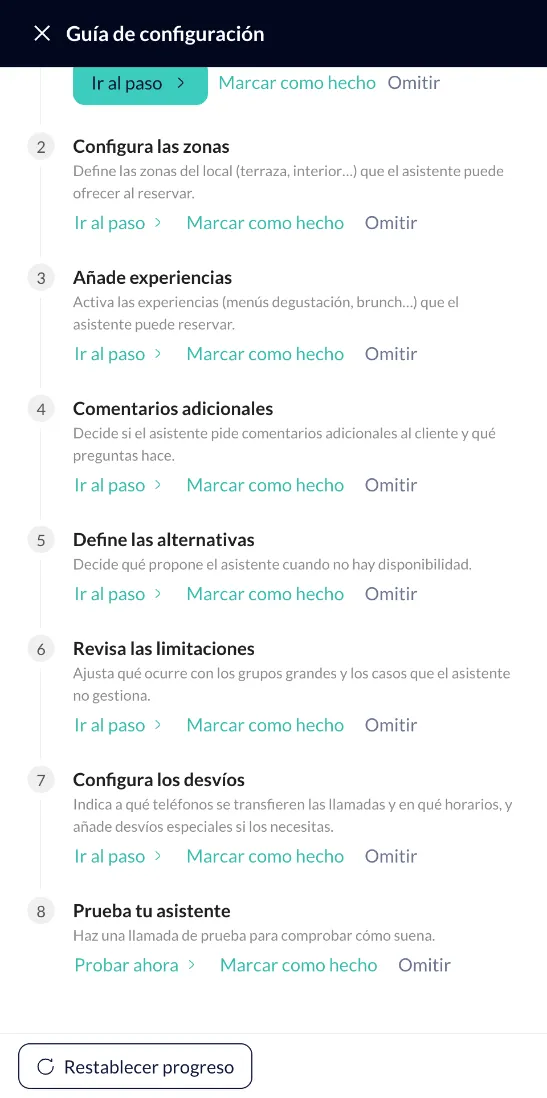
- Personalise the greeting: write how the assistant introduces itself in each language.
- Set up the zones: define the venue’s zones (terrace, indoors…) that the assistant can offer when booking.
- Add experiences: turn on the experiences (tasting menus, brunch…) that the assistant can book.
- Additional comments: decide whether the assistant asks the customer for additional comments and which questions it asks.
- Define the alternatives: what the assistant offers when there’s no availability.
- Review the limitations: what happens with large groups and the cases the assistant doesn’t handle.
- Set up call transfers: which phone numbers calls are transferred to, and when.
- Test your assistant: make a test call to check how it sounds.
Each step has Go to step, Mark as done and Skip. Reset progress starts the guide over.
Identity and voice
Section titled “Identity and voice”Shows a summary of the venue the agent is assigned to: address, phone, today’s opening hours, formality, which bookings it accepts, which links it has and whether it has documents in the Knowledge Base. See details opens the venue’s page, and Change venue assigns the agent to another venue.
If something in this summary is wrong, fix it on the venue’s page (see Add a restaurant), not in the agent.
Languages
Section titled “Languages”- Main language: the language the agent uses by default, with its Voice.
- Other languages: additional languages, each with its own voice.
Click the play button next to each voice to hear it before you choose it.
Greeting
Section titled “Greeting”The first thing callers hear. Click Edit to change it and View translation to check it in the agent’s other languages.
With Insert variable you can add details that the agent fills in automatically. For example, $GREETING says “Good morning”, “Good afternoon” or “Good evening” depending on the time of day:
$GREETING, you’ve reached Restaurante La Plaza. Would you like to make a booking, change or cancel an existing one, or do you have another question?
Reservations
Section titled “Reservations”Standard reservations
Section titled “Standard reservations”The Standard reservations switch lets the agent handle bookings. Below it, the options are grouped into blocks:
- Custom messages:
- Message before confirmation: a notice the agent always says right before confirming the booking.
- Message after confirmation: said at the end, between “Your booking is confirmed” and “Can I help you with anything else?”.
- Custom No Recent Appointment Message.
- Booking timeframe: how far in advance customers can book is set on the venue’s page (see Venue booking policy). Here you decide whether the agent should Transfer On Too Close Booking, and the messages for bookings that are too close or too far ahead.
- Current shift: whether bookings are allowed for the shift that’s already under way.
- Time policy:
- Notify shift duration: tells the customer the maximum time they can keep the table (depends on your integration).
- Weather: warns about rain or bad weather when booking outdoors.
- Terms and conditions of the reservation: conditions the agent reads out, before or after confirming.
- Zones: turn on Zones enabled and use Guided zone setup so the agent can offer the venue’s zones (terrace, indoors…). In Zone name aliases you can give each zone a more natural name than the one in your booking software.
- Types of tables: only available with the OpenTable integration.
- Experiences: tasting menus, brunch or other experiences the agent can book.
- Email and identity: Validate name (if exists) and Requires Email via WhatsApp (asks for the email over WhatsApp to confirm; turn it on only if your integration supports it).
- Reservation Comments - Additional Questions: questions the agent asks the customer before completing the booking, for example “Any allergies, intolerances or special requests?”. With Comments Required, the agent always asks them. Add another question adds more.
- Cancellation policy: what the agent does when the cancellation deadline has passed. The deadlines are set on the venue’s page.
- Custom Reservation Confirmed Messages: different messages depending on the booking’s resulting status (confirmed, pending card details, pending confirmation by the restaurant…).
Alternatives and proposals
Section titled “Alternatives and proposals”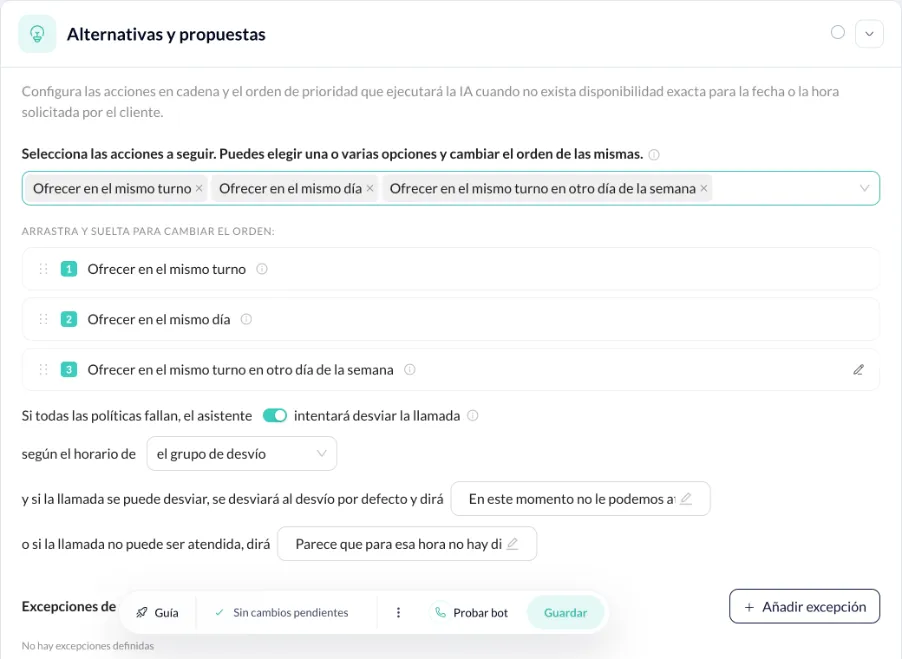
What the agent does when there’s no exact availability for the date or time the customer asks for. Choose one or more actions and drag them to set their order:
- Offer in the same shift
- Offer on the same day
- Offer in the same shift on another day of the week
If none of them works, the agent will try to transfer the call (according to the schedule you choose), with one message if the call can be transferred and another if it can’t be answered.
In Exceptions you can define cases where the agent behaves differently.
Limitations
Section titled “Limitations”How the agent handles bookings based on the number of diners. The limits come from the venue’s page (Go to the venue takes you there):
- Up to the Standard maximum: a regular booking.
- Above that, and up to the Groups maximum: handled as a group booking.
- Above everything: whatever you choose in the drop-down, for example send a personalized message.
For Restaurante La Plaza: up to 8 diners, a regular booking; 9 to 20, a group booking; more than 20, the message “For groups of more than 20 people, email us at eventos@ejemplo.com”.
Call forwarding and transfers
Section titled “Call forwarding and transfers”Default diversions
Section titled “Default diversions”The numbers the agent transfers calls to when the customer wants to speak to a person or the agent can’t help them. They’re dialed in order of priority (drag to change it).
- Enable deviation: if it’s off, no calls are transferred to the venue.
- + Create new destination: adds a number.
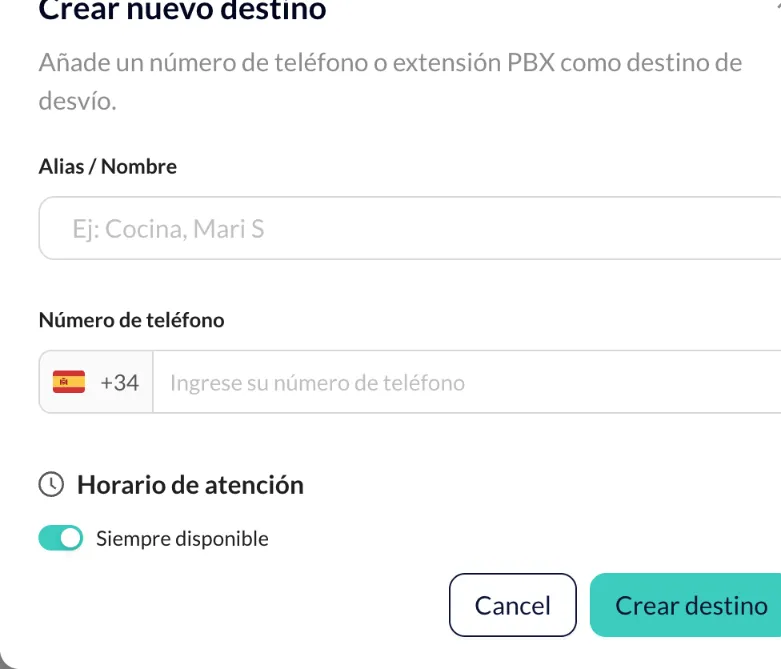
In the form you enter:
- Alias / Name: for example, “Dining room” or “Manager”.
- Phone number.
- Opening hours: Always available or a schedule of your own.
If the restaurant does not answer
Section titled “If the restaurant does not answer”What the agent does when it transfers the call and the line is busy, nobody answers or the call fails (also when the call comes from a phone menu that has already tried every destination):
- Say a message (default): says the Message if the restaurant does not answer and keeps handling the call, for example to make a booking. If you don’t customise it: “I’m sorry, at the moment our whole team is busy with service. If you’d like to manage a booking, you can tell me directly by saying: booking, or visit our website.”
- Take a message: asks why the customer is calling and emails it to the Recipients, with their phone number, so the restaurant can call them back. At least one recipient is required.
- Hang up: says the Message before hanging up, says goodbye and hangs up. If you don’t customise it: “I’m sorry, I couldn’t reach the restaurant. Please call again later.”
If the customer only says “yes”, the agent asks for the reason again; if they say “no” or say goodbye, nothing is sent. Whatever they say is sent as it is, even a booking request. If the customer’s number is hidden they can’t be called back, so the agent says the message instead of taking one.
In Custom messages you can turn on a Custom handover message and a Message if no destination can answer the call. The latter is said when the agent doesn’t call at all: forwarding is off or no destination is within its schedule.
Special transfer types
Section titled “Special transfer types”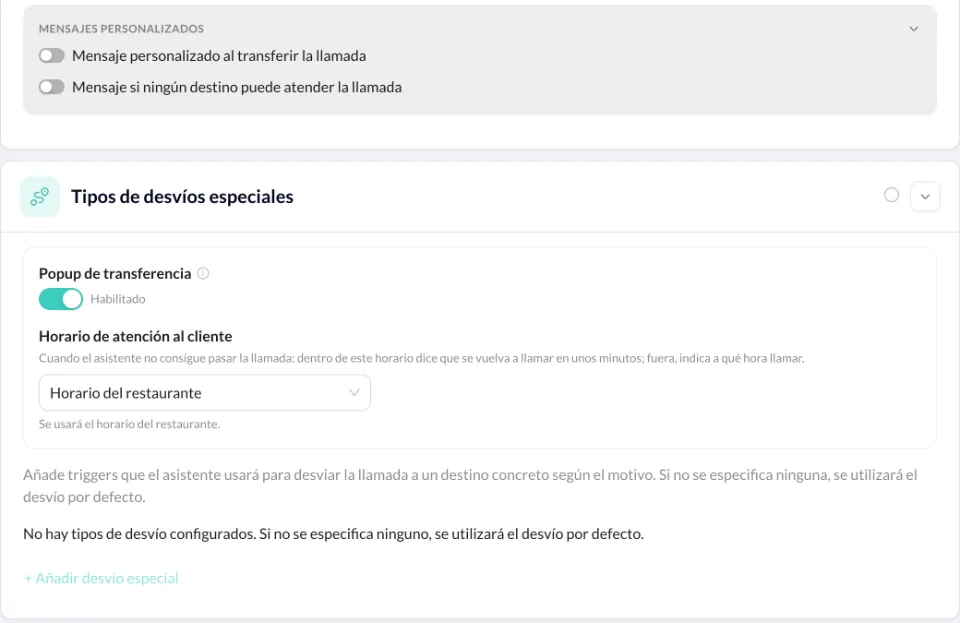
- Transfer popup.
- Customer Service Schedule: when the agent can’t get the call through, within this schedule it tells the caller to call back in a few minutes; outside it, it says what time to call. It can be the Restaurant Schedule or a different one.
- + Add special diversion: transfers to a specific destination depending on the reason for the call (for example, takeout orders, delivery, events or the menu). If you don’t set any up, the default diversion is used.
Notifications and follow-up
Section titled “Notifications and follow-up”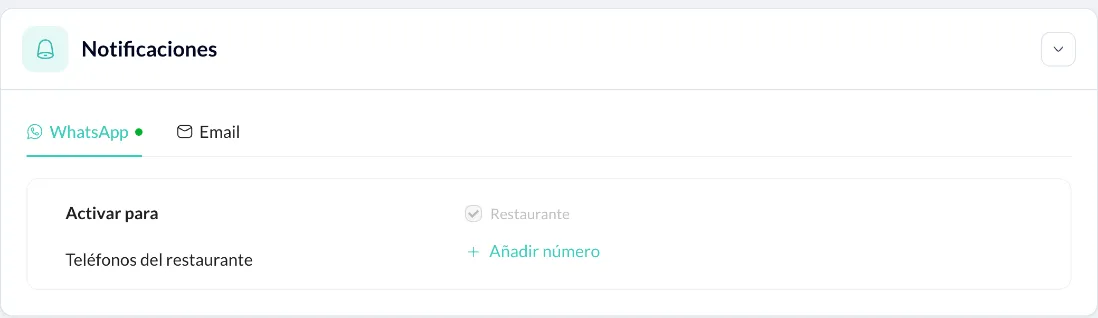
In Notifications you choose how bookings are notified, by WhatsApp or by Email:
- Activate for: who they’re sent to.
- Restaurant phone numbers (WhatsApp): Add Number so the restaurant receives the notifications.